There is a frustrating moment that almost every smart TV owner has experienced at least once.
You sit down after a long day, ready to watch your favorite show or catch a live match, and the app you installed simply refuses to cooperate. It freezes on a loading screen, throws a cryptic error message, or plays video so choppy it is unwatchable.
In most cases, the problem is not your internet connection. It is not your TV. It is the player app you chose — and choosing the wrong one wastes more time than almost any other tech decision a household can make.
Smart one iptv was built to solve exactly this problem. It is a purpose-built multimedia player designed specifically for smart TVs, engineered for stability, and — crucially — compatible with televisions that most competing apps have completely abandoned.
This guide covers everything: what smart one iptv is, how to install it on every supported device, how to connect your content, how to unlock its advanced features, how to fix every common error, and how it compares to the competition. By the end, you will have a complete picture of whether this iptv smart player belongs at the center of your home entertainment setup in 2026.
Table of Contents
What Is Smart One IPTV? The Honest Explanation
Before anything else, let us address the single most common misunderstanding about smart one iptv.
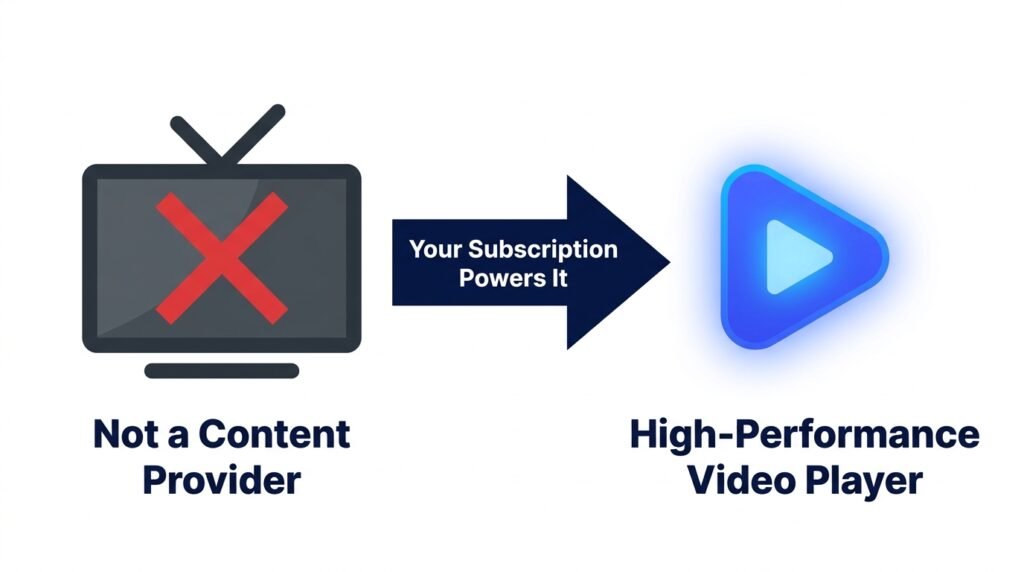
It is a player. Not a provider.
Smart one iptv does not sell channels. It does not include any built-in content library. It does not come bundled with live TV, sports packages, movies, or series. It is a high-performance video playback engine — the interface through which you watch content from a separate iptv subscription that you supply yourself.
Think of it like a DVD player. The player itself is just hardware. The movies come from somewhere else. Smart one iptv is the player. Your content subscription is the movie.
This distinction matters because it determines what you can reasonably expect from the app versus what you need to source independently. The iptv smart player handles rendering, navigation, EPG display, VOD browsing, parental controls, and playback quality. Everything content-related — channels, streams, on-demand libraries — comes from your chosen provider.
What Platforms Does Smart One IPTV Support?
This is where smart one iptv genuinely stands apart from the competition. Most modern streaming apps are built exclusively for Android TV and Fire TV ecosystems. They leave millions of Samsung and LG smart TV owners without a reliable native option.
Smart one iptv covers all of the following:
- Samsung Tizen TVs — all modern models from 2016 onward
- Samsung Orsay TVs — legacy models from 2012 to 2015 (E, F, H, and J series)
- LG webOS TVs — versions 1.0 through 6.0
- LG Netcast TVs — older LG smart TV platform
- VIDAA OS TVs — including Hisense and Brandt televisions
- Android TV and Fire TV — full support with Play Store installation
- Zeasn and Foxxum — additional smart TV operating systems
The legacy Samsung Orsay and LG Netcast support is genuinely rare. If you own one of these older televisions and have been struggling to find a reliable iptv smart app that actually installs and runs correctly, smart one iptv is almost certainly your best available option.
Installing Smart One IPTV: Complete Device-by-Device Guide
Samsung Tizen Smart TVs (2016 and Later)
Installing the iptv smart player on a modern Samsung is the most straightforward process of any supported platform.
- Press the Home button on your Samsung remote
- Navigate to the Apps section using the directional pad
- Open the Search function within the App Store
- Type smart one iptv and select the correct result
- Press Install and wait for the download to complete
- Once installed, the iptv smart icon appears in your app drawer
- Launch the app and proceed to the playlist configuration step
The entire process typically takes under three minutes on a standard broadband connection. No developer mode, no USB drives, no workarounds required.
Samsung Orsay TVs — Legacy Models (2012–2015)
Legacy Samsung models running the Orsay platform require a different approach entirely. There are two reliable installation methods, and which one you use depends on your comfort level with mild technical configuration.
Method One: Developer Mode Installation
This is the cleaner method if your TV supports it:
- Go into your Samsung TV settings and activate Developer Mode
- When prompted for a Sync server IP address, enter either
5.78.42.49or49.12.205.228 - Navigate to User Application Synchronization and start the process
- The smart one iptv application will download directly to your TV
- Once complete, find the app in the My Apps section and launch it
This method works reliably across the UH6203, UF7100, UE7000, and most E, F, H, and J series Samsung lineups.
Method Two: USB Installation
If Developer Mode gives you trouble, the USB method is equally effective:
- On a PC or Mac, download the official
smartone_orsay.zipfile from the SmartOne website - Unzip the archive and place the contents at the root level of a USB drive formatted as FAT32
- Do not place the files inside a folder — they must sit at the root directory
- Insert the USB drive into your Samsung TV’s USB port
- Wait approximately 30 seconds — the iptv smart player will appear automatically in “My Apps”
- Launch the app and proceed to setup
Both methods result in a fully functional smart iptv installation that performs identically to the Tizen version.
LG Smart TVs (webOS 1.0–6.0)
LG installation is handled natively through the official LG Content Store:
- From your LG TV home screen, open the LG Content Store
- Use the search function to find smart one iptv
- Select the app from the results and press Install
- Once installation completes, launch from the APPS HOME screen
One important note for LG webOS users: some models display a device ID rather than a standard MAC address on the iptv smart activation screen. This is normal behavior. The iptv smart player automatically generates and assigns a unique MAC address the first time you launch the app. Use this auto-generated MAC when registering your playlist on the SmartOne web portal.
Android TV and Fire TV Devices
For Android TV boxes and Fire TV devices, smart one iptv is available directly from the Google Play Store or Amazon Appstore. Search the app name, install, and launch.
Fire TV users who want a comprehensive setup walkthrough — including sideloading and Firestick-specific configuration tips — should visit our dedicated setup IPTV on Firestick installation guide, which covers every step in detail including remote configuration and app management.
Connecting Your IPTV Subscription: Playlist and M3U Setup
With smart one iptv installed, the next step is linking it to your content source. The iptv smart player supports two connection methods: M3U playlist URLs and the Xtream Codes API. Both are widely supported by all major content providers.
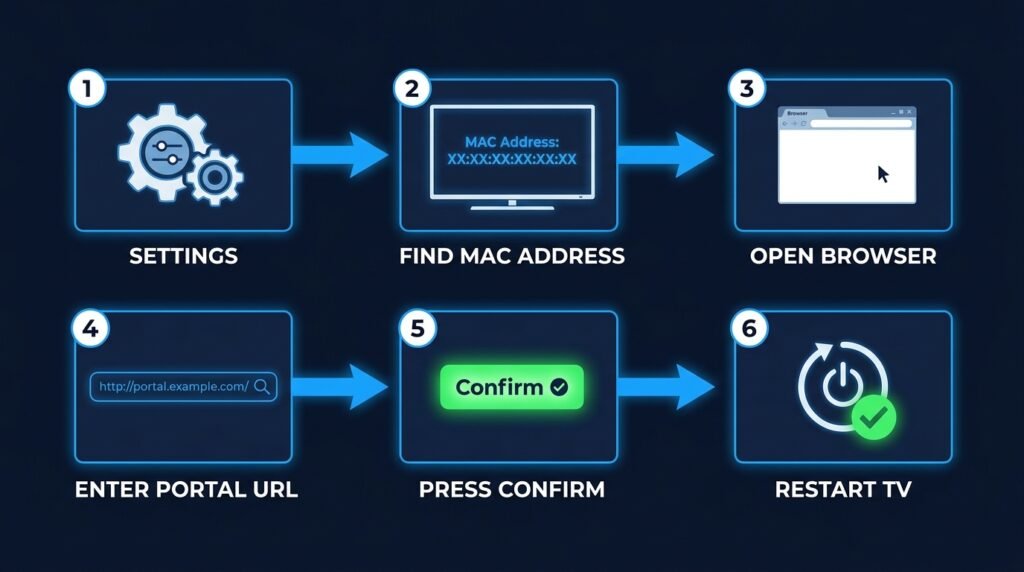
Step-by-Step M3U Playlist Configuration
Follow this sequence precisely to avoid the most common setup errors:
- Open smart one iptv on your TV and navigate to Settings
- Select the Accounts tab
- Note down your device’s unique MAC address exactly as displayed — every character matters
- On a separate device (phone, tablet, or PC), open a browser and go to the official SmartOne playlist management portal
- Enter your TV’s MAC address in the designated field
- Give your playlist a name — for example “MyIPTV Server” or your provider’s name
- Paste the M3U URL provided by your iptv subscription service into the playlist URL field
- Click “Create Smart Key” to save the configuration
- Return to your TV and restart it completely — not standby, full power off and on
- Relaunch the iptv smart app — your channels and VOD library will begin loading automatically
If you are still searching for a reliable content source to pair with your smart iptv setup, our best iptv providers comparison guide reviews the top options currently available, ranked by stability, channel count, and value for money.
Xtream Codes API Connection
For providers that use Xtream Codes panel systems, the connection is even more direct:
- Open smart one iptv and go to Settings → Add Playlist → Xtream Codes
- Enter the server URL, your username, and your password — all provided by your content supplier
- Save and restart the iptv smart player
The Xtream Codes method gives you direct panel access, which typically results in faster channel loading and more reliable EPG data than M3U links.
Licensing: Pricing, Options, and What to Know Before You Pay
Smart one iptv operates on a paid license model, but the pricing is genuinely one of the most reasonable in the entire iptv smart player market.
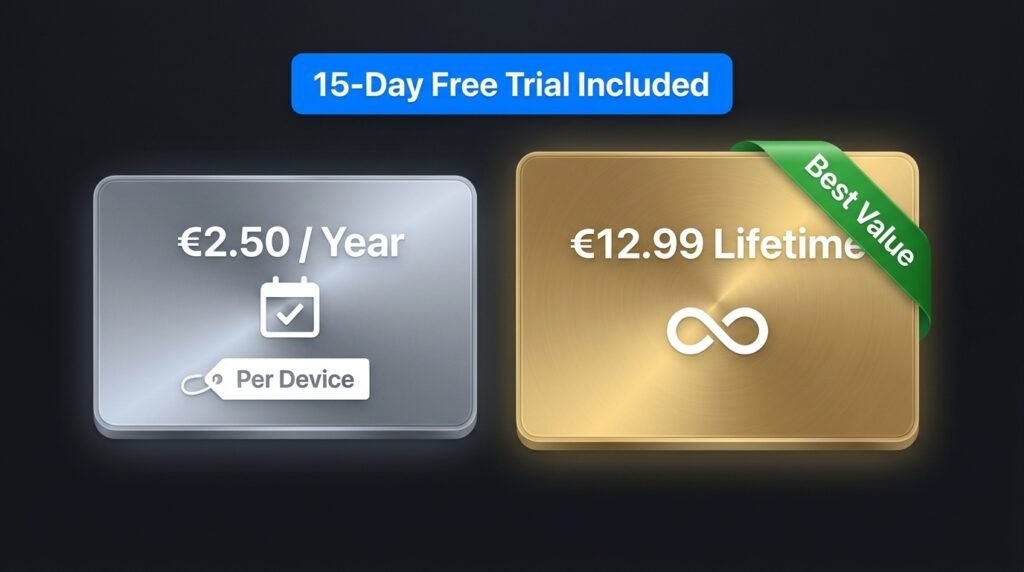
Before spending a single cent, take advantage of the 15-day free trial that every new installation automatically receives. During this trial period, the app functions identically to the paid version — full features, no limitations. Use those 15 days to thoroughly test compatibility with your specific TV model and your chosen iptv subscription provider. If the app does not work correctly during the trial, do not purchase — the license fee is non-refundable.
License Options
| License Type | Cost | Coverage |
|---|---|---|
| Annual License | €2.50 per year | Per device |
| Lifetime License | €12.99 one-time | Per device |
Each license is locked to your device’s unique MAC address. This means a license purchased for your Samsung TV will not transfer to your LG TV — each device requires its own activation.
Important for Ethernet/Wi-Fi switchers: Most smart TVs have two separate MAC addresses — one for the wired Ethernet port and one for the wireless adapter. Smart one iptv recognizes this automatically. When you switch between connection types, simply restart the iptv smart app and the correct MAC address activates without any manual intervention.
At €12.99 for lifetime access, this iptv smart player costs less than a single month of most cable subscriptions. The value calculation is straightforward.
Advanced Features That Make Smart One IPTV Worth It
The smart one iptv experience extends well beyond basic channel playback. Here is a full breakdown of the advanced capabilities that justify choosing this iptv smart player over simpler alternatives.
Electronic Program Guide (EPG)
The EPG transforms your channel list from a static directory into a dynamic, schedule-aware interface — exactly like a traditional cable TV guide.
To enable it: Settings → Setup → EPG Info → Enable
Once activated, the smart iptv app automatically pulls scheduling data for all channels in your playlist and displays it in a familiar grid layout. You can browse upcoming programs, jump directly to a specific show, and plan your viewing schedule across thousands of channels simultaneously.
For sports fans planning their viewing schedule around upcoming fixtures, this feature is indispensable. Check out our how to watch Premier League on IPTV UK guide for tips on combining EPG scheduling with sports-specific channel setups.
TV Archive and Timeshift
Missed a live broadcast? If your iptv subscription provider supports TV Archive functionality, smart one iptv lets you rewind to the beginning of any program and watch it from the start — even if it began hours ago.
This feature is particularly valuable for households across different time zones, or for sports fans who cannot always watch live. Those planning viewing setups around major tournaments should also read our iptv for Sports World Cup guide for provider and configuration recommendations.
Parental Controls
The iptv smart app includes built-in content locking. You can set a PIN code and apply it to specific channels or entire content categories, ensuring younger viewers cannot access inappropriate material without supervision.
Multilingual Interface
Smart one iptv supports the following interface languages out of the box:
- English
- French
- Spanish
- Arabic
- German
- And additional languages via settings
This makes smart one iptv a genuinely global iptv smart solution for international households where different family members prefer different interface languages.
Custom Branding for Multi-Device Managers
Managing smart one iptv across multiple TVs in a home or a small property business? Log into the SmartOne client portal, upload a custom logo, and that logo will appear consistently across every registered iptv smart player in your account. A small feature, but a surprisingly useful one for organized multi-device setups.
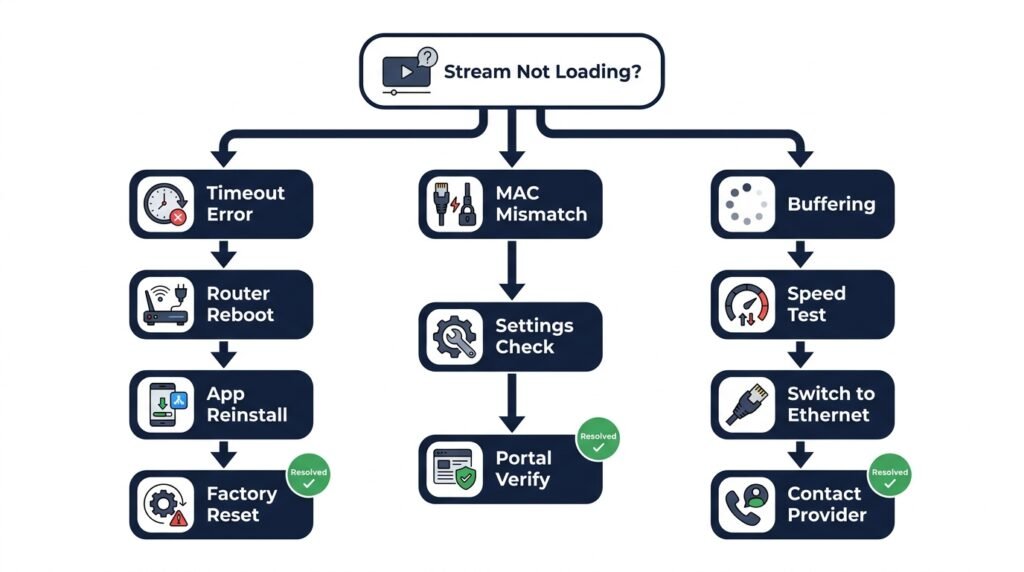
Troubleshooting: Fixing Every Common Smart One IPTV Error
Even the most reliable iptv smart player encounters issues occasionally. Here is how to resolve every common problem systematically.
The “Loading Timeout” Error
This is the most frequently reported issue across all smart one iptv community forums and support channels. The good news is that it almost never indicates a problem with the app itself.
A loading timeout occurs when the TV cannot establish a successful communication with the SmartOne activation server. The cause is almost always network-related — either your router, your ISP, or a temporary server-side issue.
Work through this resolution sequence in order:
Step 1 — Basic Reboot Protocol
- Unplug your router from the wall socket
- Wait a full 30 seconds — not just a soft restart
- Plug the router back in and wait for it to fully reconnect
- Power your TV completely off (not standby mode)
- Power it back on and relaunch smart one iptv
- In the majority of cases, this resolves the timeout immediately
Step 2 — Full App Reinstallation If the reboot does not clear the error:
- Navigate to your TV’s app management settings
- Uninstall smart one iptv completely
- Power cycle the TV (full off, not standby)
- Reinstall the iptv smart app from scratch
- Do not restore any cached settings — set up fresh
Step 3 — Factory Reset As a last resort, a full factory reset of your TV clears any deep-level configuration conflicts that reinstallation alone cannot address. After the reset, reinstall the iptv smart player and configure it as a new installation.
MAC Address Mismatch Errors
If your content loads in the iptv smart portal but nothing appears on your TV after setup, the most common cause is a MAC address mismatch.
Double-check these three things:
- The MAC address displayed in your smart one iptv app settings (Settings → Accounts)
- The MAC address you entered in the SmartOne playlist portal
- Whether you recently switched between Ethernet and Wi-Fi — which changes the active MAC address
If you switched connection types, restart the iptv smart player and check Settings again. The displayed MAC will have updated to match your current connection method.
Stream Buffering and Playback Quality Issues
Persistent buffering in the smart iptv app is almost always caused by one of three things: insufficient internet speed, Wi-Fi interference, or a provider-side server issue.
Run through this checklist:
- Speed test first — you need a minimum of 10 Mbps for HD, 25 Mbps for stable 4K
- Switch to Ethernet if you are currently on Wi-Fi — this single change eliminates the majority of buffering complaints
- Test a different channel or stream — if only specific channels buffer, the issue is provider-side, not your network
- Check your subscription status — an expired iptv subscription sometimes causes partial loading rather than a complete outage
Using a VPN With Smart One IPTV: Three Methods
Privacy protection and regional restriction bypass are both valid reasons to run a VPN alongside your smart one iptv setup. Since many smart TVs do not natively support VPN applications, you have three practical options.
Method 1 — Direct App Installation (Android TV Only)
If your device runs Android TV, this is the simplest approach:
- Open the Play Store and search for your preferred VPN app
- Install and launch it
- Connect to your chosen server location
- Open smart one iptv — all traffic now routes through the VPN tunnel
Method 2 — Router-Level VPN
Installing a VPN directly on your Wi-Fi router is the most comprehensive solution. Every device connected to that router — including your iptv smart player setup — is automatically protected without any device-level configuration.
Most premium VPN services provide router installation guides for popular models. This method requires no ongoing management once configured.
Method 3 — PC Hotspot Sharing
For TVs that cannot run a VPN directly and where router configuration is not practical:
- Install a VPN on your Windows or Mac computer and connect to a server
- Enable Mobile Hotspot in your computer’s network settings
- Open Network Connections and locate both your VPN adapter and your Hotspot adapter
- Right-click your VPN adapter → Properties → Sharing
- Enable “Allow other network users to connect through this computer’s Internet connection” and select the Hotspot adapter
- Connect your TV to the PC hotspot network
- Your smart iptv app now runs through the VPN automatically
Smart One IPTV vs. The Competition: Honest Comparison
Choosing the right iptv smart player for your specific television requires understanding what each major option actually does well — and where each falls short.
TiviMate
TiviMate offers arguably the most polished interface of any iptv smart player currently available. Its EPG grid, channel sorting, multi-stream capability, and recording features are exceptional. The significant limitation is platform support — TiviMate is Android TV only. If your television does not run Android TV natively, TiviMate is not an option.
IPTV Smarters Pro
IPTV Smarters Pro is the broadest-compatibility option in the market, running on Android, iOS, Windows, macOS, and Android TV. For families with mixed device types, it is the most practical single-app solution. Our dedicated IPTV Smarters Pro article covers its full feature set and setup process in detail. The tradeoff is that smart iptv performance on non-Android platforms can feel less polished than native alternatives.
IBO Pro Player
IBO Pro prioritizes multi-playlist management and a clean user interface, making it a strong choice for users managing several content sources simultaneously. Some of its more advanced features require a premium tier iptv subscription to unlock, which adds to the overall cost.
Smart One IPTV
Smart one iptv wins in one specific category that no competitor can match: legacy smart TV support. Its Samsung Orsay and LG Netcast compatibility is unique in the market, and its stability record on these platforms is well-documented across user communities. For Best IPTV UK users specifically, smart one iptv also pairs particularly well with UK-optimized content providers — our Best IPTV UK guide covers the best provider pairings in detail.
| Player | Samsung Orsay | LG Netcast | Android TV | iOS | Price |
|---|---|---|---|---|---|
| Smart One IPTV | ✅ | ✅ | ✅ | ❌ | €12.99 lifetime |
| TiviMate | ❌ | ❌ | ✅ | ❌ | ~$4.99/month |
| IPTV Smarters Pro | ❌ | ❌ | ✅ | ✅ | Free/Premium |
| IBO Pro | ❌ | ❌ | ✅ | ❌ | Free/Premium |
Security and Best Practices for Smart One IPTV Users
Running any iptv smart player responsibly requires attention to a few core security practices.
Download only from official sources. The smart one iptv application should be installed exclusively through your TV’s official app store, the SmartOne website, or the official USB installation files provided directly by the developer. Third-party mirrors and unofficial downloads carry real security risks.
Understand the legal landscape. Smart one iptv itself is a fully legal application — a video player is no different from VLC or any other media software. The legal question surrounding your iptv subscription depends entirely on the licensing status of your content provider and the laws in your country. Users in the UK and EU should be particularly aware of evolving enforcement around unlicensed streaming services.
Use a VPN for all unverified content. As covered above, running a VPN alongside your smart one iptv setup protects your network-level identity from exposure to unknown third-party servers.
Maintain a stable high-speed connection. For standard HD streams, 10 Mbps is the minimum. For 4K HDR content through an iptv smart player, plan for a dedicated 25 Mbps or above to ensure stable playback without adaptive quality drops.
Final Verdict: Should You Use Smart One IPTV in 2026?
Smart one iptv earns its place at the top of the recommended list for one category of user above all others: anyone with a Samsung, LG, or Hisense smart TV who wants a stable, affordable, feature-complete iptv smart player that actually works on their specific hardware.
For Android TV users with access to TiviMate, the choice is more competitive — TiviMate’s interface is genuinely superior. But for the tens of millions of households running Samsung Orsay, LG Netcast, or VIDAA OS televisions, smart one iptv is not just the best option — it is often the only option that works reliably.
At €2.50 per year or €12.99 for life, the licensing cost is so low it barely registers as a factor. The iptv smart player is stable, actively maintained, and genuinely responsive to its user community.
The variable that determines your overall experience is not the iptv smart player — it is the iptv subscription you pair it with. A premium player on top of an unreliable provider still produces a frustrating experience. Invest time in choosing the right content source using our best iptv providers guide, match it with smart one iptv on your supported TV, and the combination delivers a home entertainment setup that outperforms cable at a fraction of the cost.