
IPTV Extreme has quietly become the go-to media player for cord-cutters who are tired of paying bloated cable bills for channels they never watch. If you have landed here, you probably already know that the streaming landscape in 2026 looks nothing like it did five years ago — and this app sits right at the center of that shift. It is not just an app; it is a full-blown streaming engine that takes whatever playlist your IPTV subscription provides and turns it into something that feels remarkably close to a cable or satellite experience. This guide walks you through every step — from first install to advanced power-user tricks — so you can stop googling fixes at 11 PM during a live match and just watch.
Table of Contents
What Makes IPTV Extreme Worth Your Time in 2026
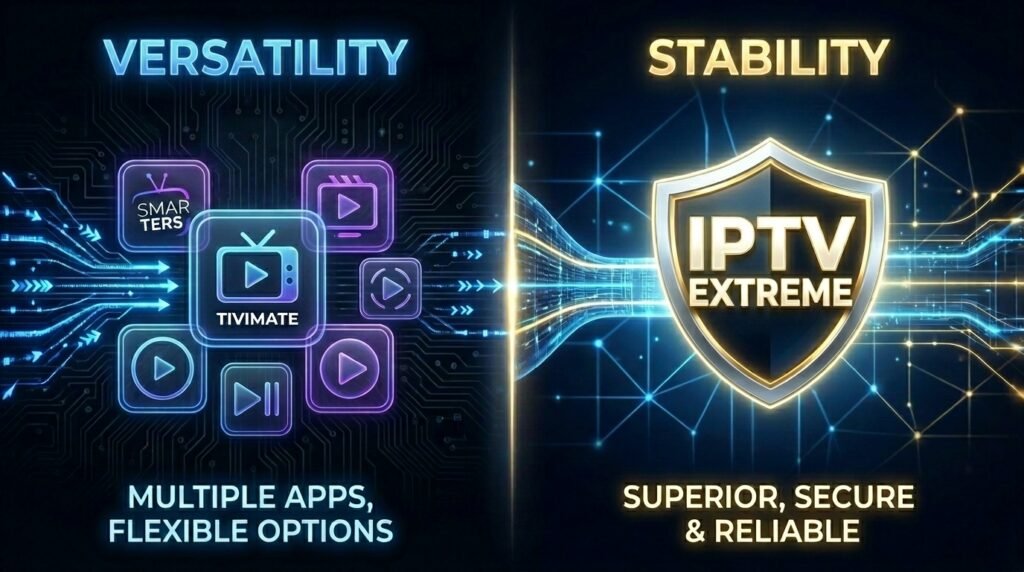
Let’s be honest: the market is flooded with IPTV players right now. You have got options like IPTV Smarters Pro, TiviMate Premium, and a dozen other contenders. So why does this app keep showing up at the top of recommendation threads and tech forums year after year?
The answer comes down to three things: compatibility, stability, and flexibility.
The app supports all three major connection protocols — M3U playlist URLs, Xtream Codes API, and MAG portals. That means it works with virtually every IPTV provider on the market, whether you are on a budget plan or a premium multi-stream package. It also handles EPG (Electronic Program Guide) data natively, supports hardware and software video decoding, and even lets you record live TV without paying for a separate DVR service.
The app comes in two flavors. The free version is fully functional but serves ads during navigation. For roughly one dollar, the Pro version removes all advertising entirely. If you are going to be using this daily — and most people who set it up correctly do — spending a dollar is a no-brainer. Both versions are legitimate contenders for the title of best IPTV app for Firestick 2026, though the Pro version obviously delivers the cleaner experience.
One thing that trips up new users: the player does not come with any channels. It is a player, not a content provider. You need an active IPTV subscription from a reputable IPTV provider before anything happens. Think of the app like a high-end Blu-ray player — beautiful machine, but it needs a disc. We will come back to choosing the right service shortly.

Choosing the Right IPTV Provider Before You Do Anything Else
This step gets skipped constantly, and it is the single biggest reason people struggle after setup. You can configure the app perfectly, dial in every setting, run it on the fastest internet connection available — and still sit there watching a spinning buffer wheel if your underlying IPTV provider has overloaded servers or poor infrastructure.
When evaluating services, look for these specific things:
Server uptime guarantees. Any reputable IPTV provider worth considering should offer at minimum 99.5% uptime. Ask directly or look for third-party reviews that test uptime over extended periods, not just a one-day trial.
Xtream Codes API support. This is the most stable connection method available in this app. Services that only offer raw M3U links are generally less reliable for live TV, especially during high-demand events like sports. Speaking of which — if you follow football, rugby, or any major tournament, make sure your provider specifically supports iptv for Sports World Cup content with dedicated stream redundancy.
Simultaneous connections. If you have multiple TVs or share your IPTV subscription with family members in the same household, confirm how many concurrent streams your plan allows. Many budget providers cap you at one, which creates conflict during peak viewing hours. Upgrading to a multi-connection IPTV subscription is almost always worth the modest price difference.
Trial periods. Legitimate services offer short trials — usually 24 to 48 hours — before asking for full payment. Avoid any provider that refuses trials entirely.
For a vetted list of tested services, the best iptv providers roundup covers current options with honest performance data across different regions.
Why a VPN Is Non-Negotiable
Before touching the install process, you need to understand why a VPN belongs in this setup — and it is not just about privacy, though that matters too.
Internet Service Providers in most countries actively monitor traffic patterns. When they detect sustained high-bandwidth streaming from an unverified source, many ISPs respond by throttling that connection. This throttling is invisible to the end user; you just notice that streams that used to play cleanly at 1080p now stutter at lower quality. The stream is not broken. Your provider’s servers are not down. Your ISP is deliberately slowing the pipe.
A VPN solves this by encrypting your traffic so your ISP cannot identify what you are streaming or where it is coming from. The connection looks like ordinary encrypted data, and throttling triggers never fire. This is one of the most effective and underrated tools for achieving IPTV Firestick no buffering on a consistent basis.
For FireStick users specifically, Surfshark is the most practical choice. It has native FireStick apps, maintains fast connection speeds on streaming-optimized servers, and — critically — allows unlimited simultaneous device connections on a single subscription. Install and connect to your VPN before launching the app. Make it a habit, not an afterthought.
How to Install IPTV Extreme on FireStick (Step-by-Step)
Because the app is not listed in the Amazon Appstore, you need to sideload it. This sounds technical, but the actual process takes under five minutes. For a full walkthrough with screenshots, the setup IPTV on Firestick installation guide covers every variation and common error.
Here is the core process:
Step 1 — Unlock Developer Mode Go to Settings → My Fire TV → About. Tap on “Fire TV Stick” seven consecutive times. Your device will display a message confirming that developer options are already enabled.
Step 2 — Allow Apps from Unknown Sources Navigate back one level to Developer Options. Toggle “Apps from Unknown Sources” to On. This allows your FireStick to install APK files from outside the official store.
Step 3 — Install the Downloader App Return to the FireStick home screen. Use the search icon to find “Downloader” — it is a free utility with an orange icon. Install it.
Step 4 — Enter the Download Code Open Downloader. In the URL or code field, enter 730116. This is the registered Downloader code that points directly to the current APK. The file will begin downloading automatically.
Step 5 — Install the APK When the download finishes, tap Install. Once installation is complete, delete the APK file when prompted — it frees up storage space and you no longer need it.
You now have IPTV Extreme installed. Launch the app and you will land on an empty playlist screen ready for setup.
Connecting Your IPTV Subscription: Three Methods Explained
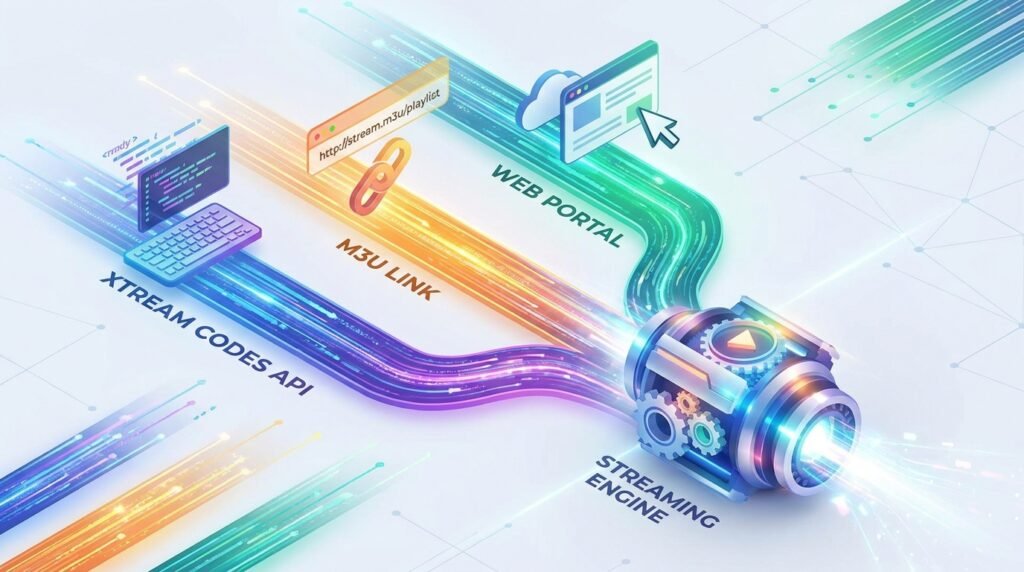
The player supports three distinct ways to connect your IPTV subscription. The method you use depends entirely on what credentials your provider sends you at signup.
Method One: Xtream Codes API
This is the preferred approach for anyone serious about stream stability. When you sign up with most quality providers, they send you a portal URL, a username, and a password. Those three details are your Xtream Codes credentials.
Inside IPTV Extreme, tap the menu icon and select “Add Playlist.” Choose “Xtream Codes API” from the connection type list. Enter your portal URL exactly as provided — including the correct port number if one is specified. Add your username and password, then tap Add. The app will pull your full channel list, VOD library, and series catalog automatically. This typically takes 30 to 90 seconds depending on the size of your subscription package.
Method Two: M3U Playlist URL
Some providers issue only a direct M3U link rather than Xtream credentials. This method works well for smaller or niche services.
In IPTV Extreme, go to the three-dot menu, select Playlists, then Add Playlist, and choose “File or Link to Playlist.” Give the playlist a recognizable name (something like your provider’s name and the month), then paste the full M3U URL. Tap Save. Channels will begin loading into the app.
One note: M3U links sometimes expire or require periodic refreshing. If your channels suddenly disappear, log back into your provider’s panel and grab a refreshed link.
Method Three: Web Portal Management
Typing long URLs or credentials using a FireStick remote is genuinely painful. This feature solves it elegantly with a web-based management portal. When you open the app, look for your device’s unique MAC address displayed on-screen. On a separate device — your phone or laptop — visit the web management portal, enter the MAC address, and add your playlist details there. The configuration syncs to your FireStick automatically. This method is especially useful when managing multiple devices or updating credentials after a subscription renewal.
Setting Up Your EPG for a Real TV-Like Experience
A channel list with no program information feels stripped-down and frustrating to navigate. Adding an EPG transforms the app into something that genuinely rivals a traditional TV guide — you can see what is currently airing, what comes next, and even schedule recordings around specific programs.
Most quality IPTV subscription packages include an EPG link as part of the service. It usually ends in .xml or .gz and looks like a standard web URL. Verifying that your IPTV subscription plan includes EPG data before purchasing is a smart move — it saves considerable frustration later.
To add it: go to the app’s Settings, find the EPG section, and select “Add EPG Source.” Paste your EPG URL and save. The guide data will populate over the next few minutes. If the guide appears blank after several minutes, go back into EPG settings and tap “Force Update” — this clears the cache and triggers a fresh download.
If your IPTV provider does not include an EPG link, there are free public EPG sources available for many regions. A quick search for “free XMLTV EPG [your country]” will surface usable options.
IPTV Firestick No Buffering: 10 Expert Fixes That Actually Work
This is the section most people come here for. Buffering is the arch-enemy of any IPTV setup, and fixing it requires a layered approach — because there is rarely a single cause. Work through this checklist systematically rather than jumping to the most drastic fix first.
1. Power-cycle everything. Unplug your router, modem, and FireStick from power. Wait 60 full seconds. Plug the modem in first, wait for it to fully connect, then the router, then the FireStick. This alone resolves a surprising number of IPTV Firestick no buffering complaints.
2. Switch to a wired connection. Wi-Fi introduces interference, signal drops, and inconsistent speeds — all of which show up as buffering. A USB-C to Ethernet adapter for your FireStick (Amazon sells several compatible options) gives you a rock-solid connection. If you have tried everything else and still buffer, go wired first.
3. Clear the app cache. Go to Settings → Applications → Manage Installed Applications → IPTV Extreme → Clear Cache. Do this monthly as a baseline maintenance step.
4. Activate your VPN. As discussed earlier, ISP throttling is a major and frequently overlooked cause of freezing. Connect your VPN to a server geographically close to you for the best balance of protection and speed.
5. Update IPTV Extreme. The current version as of 2026 is v127.0, which includes targeted playback optimizations for modern FireStick hardware. Running an outdated version means missing bug fixes that could directly address your buffering issue.
6. Switch video decoder mode. In IPTV Extreme’s player settings, you can toggle between Hardware (HW) decoding and Software (SW) decoding. Hardware decoding uses your FireStick’s built-in processor, which is faster but occasionally incompatible with certain stream formats. Software decoding is more universally compatible. Test both and stick with whichever plays more smoothly on your specific device.
7. Step down the resolution. If a 4K or 1080p stream consistently stutters, your internet connection may not have sufficient sustained throughput for that bitrate. Most IPTV subscription packages include lower-resolution alternatives for the same channels. Switch to the 720p version of the channel and see if stability improves.
8. Free up your network. Other devices on your home network consuming bandwidth — large file downloads, cloud backups, video calls — compete directly with your stream. During important broadcasts, pause or pause those activities on other devices.
9. Use an external player. IPTV Extreme integrates cleanly with MX Player as an alternative playback engine. If the built-in player buffers on specific channels, configuring MX Player as the external player often resolves format-specific incompatibilities.
10. Evaluate your provider. If you have worked through all nine steps above and still experience persistent buffering, the problem is almost certainly at the server level. Overloaded servers, especially during peak hours or major live events, are something no client-side fix can solve. Consider testing a different service — the best iptv providers list includes options that are specifically stress-tested for live sports and concurrent load.
Achieving consistent IPTV Firestick no buffering is entirely realistic with the right combination of network setup, app configuration, and provider quality. Most people who report chronic buffering are missing at least two or three of the above steps.
Advanced Features That Set IPTV Extreme Apart
Once your setup is dialed in and your streams run cleanly, it is worth exploring the features that push IPTV Extreme beyond a basic player into a genuinely capable home entertainment hub.
Live Recording. IPTV Extreme can record any live channel directly to your connected USB storage. You can trigger recordings manually or schedule them in advance based on your EPG data. For a sports fan, this means never missing a match because of a scheduling conflict. Programs record in standard video formats, making them easy to play back on other devices. Always confirm that your IPTV subscription plan permits recording — some providers restrict this at the stream level, so it is worth checking terms before relying on it heavily.
Parental Controls. If children have access to the FireStick, you can lock specific channel groups behind a PIN within IPTV Extreme. Set it up under the Parental Controls section of the settings menu. Individual channels or entire categories can be restricted independently.
Customizable Interface. The app offers more than ten visual themes, multiple channel layout modes (grid view, poster view, list view), and adjustable text sizes. For users with larger screens or those who share the TV with family members who prefer different layouts, this flexibility is genuinely useful.
Favorites and Channel Groups. Long-press any channel to add it to your Favorites list. You can also reorganize which channel groups appear by default, hiding categories you never use (adult content, foreign-language channels you do not watch, etc.) so your primary interface stays clean and fast to navigate.
Picture-in-Picture Mode. Watch a live channel in a small overlay window while browsing the EPG or your VOD library. This is particularly handy when you want to monitor a live sports score while searching for something to watch in-between.
For users who want to push resolution and quality even further, the Bamo TV 8K content tier is worth exploring, especially as 8K-capable displays become more accessible in 2026. IPTV Extreme’s hardware decoding support means it can handle those high-bitrate streams without the frame drops that hamper lighter-weight players.
IPTV Extreme vs. the Competition: Where It Fits in 2026
The honest answer is that no single IPTV player wins across every use case, which is why informed users often install two or three and use each for different purposes.
IPTV Smarters Pro — covered in the IPTV Smarters Pro article — has a more polished visual interface and is the friendlier option for absolute beginners. However, it offers less granular control over decoder settings and buffering optimization.
TiviMate Premium, detailed in the TiviMate Premium guide, is the favorite among enthusiasts for its robust EPG handling and slick channel switching. Its weakness is that it requires a subscription of its own after the trial period and has limited Mag portal support.
IPTV Extreme wins specifically on versatility and customization depth. It supports every major connection protocol, gives you meaningful control over how streams are decoded and buffered, and does not require an ongoing subscription to unlock its best features. For anyone who wants to own their setup rather than depend on a third-party interface subscription, it remains the best IPTV app for Firestick 2026 from a pure control standpoint. Whether you are new to streaming or a seasoned cord-cutter, the argument for IPTV Extreme as the best IPTV app for Firestick 2026 only gets stronger when you dig into its feature depth.
Quick Troubleshooting Reference
Even with a perfect setup, occasional issues happen. Here is a fast reference for the most common problems:
Channels not loading after adding playlist: Wait five minutes, then go to Settings → Playlists → Force Update. If that fails, verify your credentials directly in your provider’s panel — passwords sometimes reset after subscription renewals.
EPG showing wrong times: This is usually a timezone mismatch. In IPTV Extreme’s EPG settings, manually set your timezone offset. UTC offsets for your region are easily found online.
App crashes on startup: Clear the app cache and data (Settings → Applications), then relaunch. If the crash persists, uninstall and reinstall using the Downloader code 730116.
4K channels available but not playing: Confirm your FireStick model supports 4K output (Fire TV Stick 4K or 4K Max). Also check that your HDMI cable is HDCP 2.2 compliant — older cables block protected 4K content.
Recordings not saving: Ensure your USB storage is formatted correctly (FAT32 for drives under 32GB, exFAT for larger drives) and that IPTV Extreme has storage write permissions enabled.
Final Thoughts: Building a Setup That Lasts
The streaming landscape in 2026 rewards people who take the time to build their setup correctly rather than clicking through setup wizards and hoping for the best. IPTV Extreme rewards that same patience. It is not the prettiest app in the ecosystem, but it is one of the most technically capable — and when you pair it with a quality IPTV subscription and the right network configuration, the result is a streaming experience that most cable packages simply cannot match on value.
To recap what a complete, optimized setup looks like: start with a stable, well-reviewed IPTV provider that offers Xtream Codes API access. Install a VPN — Surfshark is the recommended choice for FireStick — and connect before anything else. Sideload IPTV Extreme using the Downloader app and code 730116. Connect your playlist via Xtream Codes for maximum stability. Add your EPG link. Then work through the buffering optimization checklist to fine-tune performance for your specific network conditions.
Follow that sequence and IPTV Firestick no buffering stops being a goal and starts being your everyday reality. IPTV Extreme, configured properly with the best IPTV app for Firestick 2026 settings in place, delivers a viewing experience that is genuinely hard to beat — whether you are watching live sports, catching up on movies through your VOD library, or recording tonight’s match to watch in the morning.
The cord-cutting era is well past its awkward adolescence. The tools are mature, the services are reliable, and the setup process — thanks to guides like this one — is more accessible than ever. All that is left is for you to get started.