
IBO Player is the application that has quietly become the go-to choice for discerning Smart TV owners across the United Kingdom who demand a reliable, feature-rich, and genuinely flexible media player for their IPTV experience. Since the unfortunate decline of Duplex Play — which for years served as the default recommendation amongst home cinema enthusiasts — there has been a conspicuous gap in the market for a worthy successor. That successor has arrived, and it comes in the form of this remarkably capable application. Whether you are running a high-end Samsung QLED in your dedicated cinema room or a mid-range LG OLED in the lounge, IBO Player delivers the kind of polished, stable performance that the modern British viewer quite rightly expects.
Table of Contents
Why IBO Player Has Replaced Duplex Play as the UK’s Favourite
To understand why so many installers and enthusiasts have made the switch, it helps to appreciate what went wrong with Duplex Play. Over time, that application became increasingly problematic — inconsistent updates, compatibility issues with newer Smart TV firmware, and a general feeling that it had been left to stagnate. The community needed something better maintained, more forward-thinking, and built with longevity in mind.
IBO Player answered that call with considerable authority. Developed with modern IPTV consumption habits firmly in mind, it launched onto Samsung and LG Smart TV platforms and rapidly accumulated a loyal following across UK home cinema forums and enthusiast communities. What separates it from the competition is not any single headline feature, but rather the thoughtful combination of reliability, flexibility, and genuine user-centred design that professional installers recognise immediately.
From a technical standpoint, the application is built on a robust foundation. It handles the complexities of M3U playlist management, EPG data integration, and multi-stream switching without the stuttering or buffering artefacts that plagued its predecessor. For the professional home cinema technician, this means fewer call-backs, fewer frustrated clients, and a set-up experience that feels genuinely premium.
Understanding the ‘Media Player Only’ Model: Neutrality and Power
One of the most important things to understand about IBO Player is what it is not. It is not a content provider. It does not sell subscriptions, bundle channels, or have any commercial relationship with the streams you choose to load into it. This is what technicians refer to as the Media Player Only model, and it is an approach that carries significant advantages.
Because the application operates as a neutral conduit between your chosen IPTV subscription and your television screen, it remains entirely agnostic about the source of your content. You bring your own playlist — your own M3U URL or Xtream Codes credentials — and IBO Player simply does what it does best: play that content beautifully and reliably.
This neutrality also means the application itself is not subject to the kind of takedown pressures and legal complications that have historically beset bundled-content applications. It exists to play media. Full stop. For the end user, this translates to a far more stable long-term investment. You are not dependent on the application developer’s commercial relationships or licensing arrangements; you are dependent only on your own chosen provider.
Speaking of which — when it comes to selecting a premium IPTV service to pair with IBO Player, the recommendation from professional installers is increasingly unanimous: IPTVStreamy (available at iptvstreamy.com) stands head and shoulders above the competition. With an extensive catalogue covering Premium UK Broadcasters, Elite Sports Networks, and breathtaking 4K Cinema Collections, IPTVStreamy offers the kind of content depth and streaming reliability that genuinely complements the technical excellence of the player itself. The two are, in short, an ideal pairing.
Core Features: A Detailed Breakdown
VLC-Based Internal Player
At the heart of IBO Player sits a VLC-based internal playback engine — and if you know anything about home media technology, you will immediately appreciate the significance of that choice. VLC is the gold standard of open-source media players, celebrated for its extraordinary codec support, its stability under sustained load, and its ability to handle virtually any stream format thrown at it.
In practical terms, this means that the streams you load — whether they are standard H.264 broadcasts from Premium UK Broadcasters or bandwidth-intensive H.265/HEVC feeds from 4K Cinema Collections — will play back with minimal fuss and maximum fidelity. The engine handles adaptive buffering intelligently, which is particularly important when streaming over a standard UK fibre broadband connection where momentary fluctuations in throughput are inevitable.
For the home cinema environment specifically, the VLC engine’s ability to maintain audio synchronisation across extended viewing sessions is noteworthy. There is nothing more disruptive to an immersive viewing experience than creeping lip-sync drift, and the playback architecture within IBO Player addresses this with quiet competence.
Intuitive User Interface and Custom Themes
The user interface of IBO Player has been designed with the living room environment firmly in mind. Navigation via a standard television remote control feels natural and responsive, with logical menu hierarchies that do not require a manual to decipher. Channel lists load swiftly, category filtering operates smoothly, and the overall visual language of the application feels contemporary rather than utilitarian.
Particularly appreciated by clients who take pride in their home cinema aesthetic is the custom themes functionality. IBO Player allows users to personalise the application’s appearance — adjusting colour schemes, background styles, and layout preferences to create an interface that feels cohesive with their broader set-up. It is a small touch, but in the context of a dedicated home cinema room where every detail matters, it speaks to a developer that understands its audience.
Full EPG Support
No serious IPTV set-up is complete without a properly functioning Electronic Programme Guide, and IBO Player delivers full EPG support with commendable reliability. When paired with a quality EPG source — typically provided as an XMLTV URL by your subscription provider — the guide populates accurately across your loaded channels, displaying programme information, scheduling data, and in many cases, series descriptions.
Device Support for IBO Player: Every Platform Covered
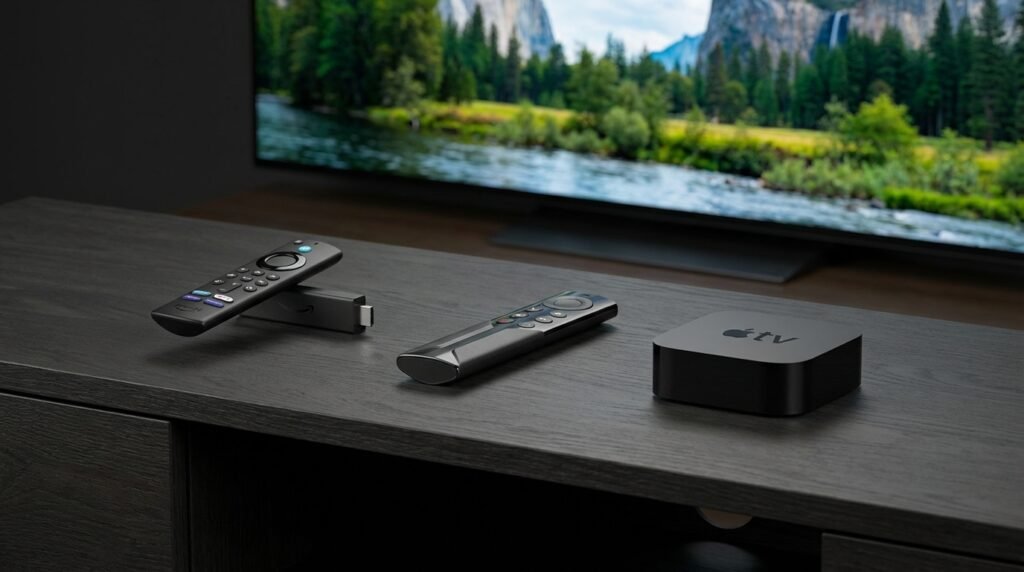
One of the most compelling arguments for choosing IBO Player as your primary IPTV client is the sheer breadth of its device compatibility. Unlike some applications that excel on one platform whilst delivering a compromised experience on another, this application has been developed with genuine cross-platform consistency in mind. Whether your home cinema is built around a flagship Samsung display or a budget-friendly Android box tucked behind the television, the experience remains recognisably cohesive. Let us examine each supported platform in detail.
Samsung Smart TVs (Tizen OS)
Samsung’s Tizen operating system represents the largest single Smart TV platform in the United Kingdom, and it is arguably where IBO Player feels most at home. The application is available directly through the Samsung App Store on compatible Tizen-based models, which simplifies installation considerably — no sideloading, no developer mode gymnastics, simply search, install, and configure.
Compatibility extends across a wide range of Samsung models, though it is worth noting that older sets running early versions of Tizen may have limited functionality or may not support the application at all. For clients investing in a new display, any Samsung Smart TV manufactured from 2017 onwards will typically run IBO Player without complication. The interface scales elegantly to Samsung’s various panel sizes, and the application makes intelligent use of the Tizen remote’s playback controls, including the dedicated play, pause, and directional inputs.
For 4K HDR viewing — particularly relevant when accessing 4K Cinema Collections through a provider such as IPTVStreamy — Samsung’s Tizen implementation handles the handshake between the application’s VLC engine and the television’s HDR tone-mapping particularly well, delivering the kind of colour fidelity and dynamic range that justifies the investment in a premium panel.
LG Smart TVs (webOS)
LG’s webOS platform is the other dominant Smart TV operating system in UK households, and it receives equally thorough support. The application is accessible through the LG Content Store on compatible webOS devices, and the installation process mirrors the simplicity of the Samsung experience.
Where LG’s implementation particularly shines is in its handling of the Magic Remote — LG’s pointer-based input device. Navigating the IBO Player interface with a Magic Remote feels intuitive in a way that pure directional-pad navigation cannot fully replicate, particularly when browsing large channel lists or scrolling through an extensive VOD library. For clients who prioritise ease of use alongside technical performance, LG webOS combined with this application is a genuinely excellent pairing.
Android TV and Android Boxes
The Android TV ecosystem — encompassing both manufacturer-integrated Android TV sets and standalone Android boxes such as the NVIDIA Shield, Xiaomi Mi Box, and various own-brand alternatives — offers perhaps the most flexible IBO Player experience of all. Installation via the Google Play Store is straightforward on certified Android TV devices, whilst sideloading via APK remains an option for non-certified hardware running stock Android.
The Android environment is particularly well-suited to power users who wish to take full advantage of the application’s more advanced configuration options. Android’s permissive file system access makes importing local playlist files, managing EPG caches, and fine-tuning network buffer settings considerably more accessible than on the more closed Tizen and webOS environments. For the dedicated home cinema enthusiast who wants granular control over their set-up, an Android box running IBO Player represents the professional installer’s frequent first recommendation.
Amazon Firestick and Fire TV
Amazon’s Fire TV platform occupies a unique position in the UK market — it is the device of choice for an enormous number of casual viewers who have graduated from standard television viewing towards streaming and IPTV. IBO Player is available through the Amazon Appstore for compatible Fire TV devices, making installation refreshingly straightforward for this audience.
It is worth noting that Firestick performance is closely tied to the generation of device in question. The 4K Max and the third-generation 4K Stick handle the application’s demands comfortably, even when streaming high-bitrate content from Elite Sports Networks during peak hours. Older first and second-generation devices may exhibit occasional frame drops under sustained 4K load, and clients using legacy hardware should be advised accordingly. For a broader comparison of how different applications perform across Fire TV hardware, our dedicated IPTV Smarters Pro article covers the competitive landscape in useful detail.
Apple TV
Apple TV support — delivered via the App Store on tvOS — rounds out an impressively comprehensive device matrix. The Apple TV 4K (both second and third generation) runs IBO Player with the kind of smooth, responsive performance that Apple hardware is renowned for. The application integrates cleanly with the tvOS interface, and Siri Remote navigation, whilst different in character from a traditional television remote, becomes second nature within a session or two.
For clients already embedded in the Apple ecosystem — HomePod audio, AirPlay mirroring, and iCloud integration forming part of their wider home environment — Apple TV offers the most harmonious overall experience. It is worth consulting our Best IPTV UK guide for a fuller discussion of how device choice intersects with provider selection when optimising a complete home cinema set-up.
Step-by-Step Configuration of IBO Player
With device compatibility established, we turn to the practical matter of getting IBO Player fully operational. The configuration process is more straightforward than many newcomers anticipate, but it does require a degree of methodical attention to detail. Follow these steps carefully and your set-up will be completed correctly first time.
Step One: Locating Your MAC Address and Device Key
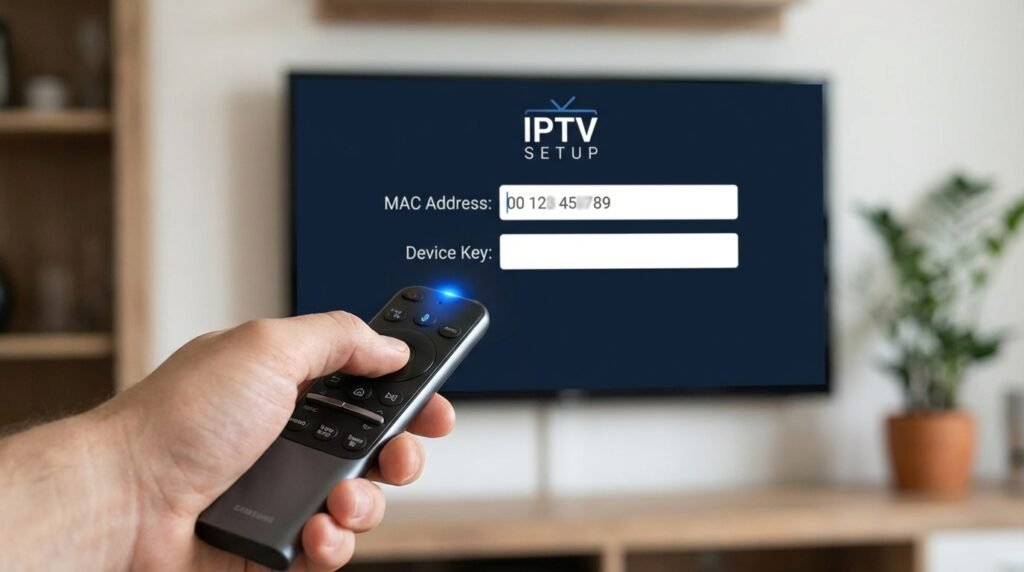
Upon launching IBO Player for the first time on your chosen device, you will be presented with a splash screen that displays two critical pieces of information: your unique MAC Address and your Device Key. These are the identifiers that tie your specific device to your account on the official web portal.
Make a careful note of both values — ideally photograph the screen with your mobile phone for reference. The MAC Address is a twelve-character alphanumeric string formatted in pairs (for example, 1A:2B:3C:4D:5E:6F), whilst the Device Key is typically a shorter unique code. Both are required for portal-based activation, and neither can be retrieved easily if lost without returning to this initial screen.
Step Two: Accessing the Official Web Portal
Open a browser on your computer, tablet, or smartphone and navigate to the official IBO Player web portal. Here you will create or log into your account and register your device using the MAC Address and Device Key noted in the previous step.
Once your device is registered within the portal, you will have access to the playlist management dashboard — the central hub through which all of your IPTV subscription details are entered and managed. This portal-based approach is one of the application’s more elegant design decisions, as it means configuration changes made on a desktop browser propagate to your television without requiring you to navigate complex on-screen menus via remote control.
Step Three: Entering Your Subscription Details
This is where your chosen IPTV provider enters the picture. IPTVStreamy (iptvstreamy.com) supplies subscribers with all the necessary credentials upon sign-up: your M3U playlist URL, your Xtream Codes login details (comprising a server URL, username, and password), and typically an XMLTV EPG URL for programme guide population. All of these details are entered directly into the portal dashboard against your registered device.
For subscribers who have not yet selected a provider, this is the juncture at which that decision becomes consequential. The quality of the streams feeding into IBO Player directly determines the quality of your viewing experience — the application can only work with what it receives. IPTVStreamy’s infrastructure, with its dedicated UK server nodes and reliable uptime commitments, ensures that the technical excellence of the player is matched by the quality of the content pipeline.
Step Four: Choosing Your Connection Method — And Why Xtream Codes Wins
IBO Player supports two primary methods for connecting to an IPTV subscription: the standard M3U playlist URL, and the Xtream Codes API. Both function reliably, but for the majority of home cinema set-ups — particularly those where a substantial VOD library is a priority — Xtream Codes is the definitively superior choice, and understanding why is important.
When you connect via an M3U URL, the application loads a static playlist file. This file contains your channel list and, if configured correctly, your VOD entries. However, M3U files are inherently flat — they present content as a list rather than as an organised, navigable library. Large M3U files covering thousands of VOD titles can be slow to parse, cumbersome to browse, and offer no native mechanism for categorisation beyond whatever structure the provider has baked into the file itself.
Xtream Codes, by contrast, is an API-driven connection method. Rather than loading a static file, IBO Player queries the provider’s server dynamically, retrieving content categories, VOD libraries, series collections, and live channel lists in a structured, hierarchical format. The result is a dramatically more navigable experience — your 4K Cinema Collections appear in their own dedicated category, your series content is organised by show and season, and the entire library feels like a curated service rather than an unstructured dump of content.
There is also a meaningful performance advantage. Because Xtream Codes retrieves content on demand rather than parsing an entire playlist at launch, initial load times are considerably faster, and the application’s memory footprint remains lean even when connected to a provider offering tens of thousands of VOD titles. For serious home cinema enthusiasts accessing premium content through IPTVStreamy, Xtream Codes is not merely the preferred method — it is the recommended standard.
Step Five: Finalising Synchronisation
With your credentials entered into the portal, return to your television and navigate to the synchronisation option within IBO Player’s settings menu. The application will contact the portal, retrieve your configured playlist and EPG data, and populate your channel list and programme guide. Depending on the size of your subscription’s content library and the speed of your fibre broadband connection, this initial synchronisation may take between thirty seconds and a few minutes.
Once complete, your IBO Player installation is fully operational — channels organised, EPG populated, VOD library accessible, and the entire set-up ready to deliver the premium home cinema experience that both the application and a quality provider like IPTVStreamy are built to support.
Activation Process: Free Trial and Permanent Licence
The IBO Player licensing model is refreshingly straightforward and represents genuine value for the serious home cinema enthusiast. Upon installing the application and completing your initial device registration through the web portal, you are automatically enrolled in a 7-day free trial of the full premium feature set. This is not a crippled demonstration mode — during the trial period you have unrestricted access to every capability the application offers, including multi-playlist management, custom themes, full EPG support, and the complete VOD navigation experience via Xtream Codes.
This trial window is deliberately generous, and for good reason. The developers understand that configuring a home cinema set-up properly takes time, and that meaningful evaluation requires real-world usage rather than a cursory twenty-minute test. Use this period to connect your IPTVStreamy subscription, stress-test the playback engine across Premium UK Broadcasters and Elite Sports Networks, and confirm that the application integrates cleanly with your specific television model and home network configuration.
Once the trial period concludes — or sooner, if you are satisfied and wish to commit — the permanent licence is available for a one-time payment of 8 EUR. It bears emphasising that this is a permanent licence, not a recurring subscription. You pay once, and the application is yours indefinitely, with all future updates included. In an era where software vendors increasingly favour monthly subscription models, this one-time payment structure is a principled and consumer-friendly approach that deserves acknowledgement.
Payment is processed through the official IBO Player web portal, accepting standard international payment methods. Once payment is confirmed, your device’s MAC Address is permanently associated with a licenced account, and the activation status is reflected immediately upon your next application launch. For a broader perspective on how this cost sits within the overall budget of a UK IPTV set-up, our IPTV Subscription UK pricing guide provides a comprehensive breakdown of what to expect at every price point.
Privacy and Security: Why a VPN Is Essential for Your IBO Player Stream
For UK viewers, internet privacy is not merely a theoretical concern — it is a practical reality of streaming in 2026. British Internet Service Providers are known to engage in traffic-shaping practices that disproportionately affect IPTV streams, particularly during peak evening hours when network congestion is at its highest. The symptom experienced by the end user is infuriatingly familiar: buffering, pixelation, or outright stream failure at precisely the moment you have settled in for a major broadcast on Elite Sports Networks.
The solution is a quality VPN — a Virtual Private Network that encrypts your internet traffic and routes it through a server of your choosing, rendering your ISP unable to identify and throttle your IBO Player streams. When selecting a VPN for home cinema use, prioritise providers that offer dedicated UK and European servers, support for router-level installation (so every device on your network benefits simultaneously), and crucially, no bandwidth caps that would artificially limit your 4K streaming capability.
With a VPN active, your ISP sees only encrypted traffic moving between your router and the VPN server — the nature of that traffic, and specifically its identity as an IPTV stream, is entirely concealed. The result is consistent, unthrottled performance that reflects the true quality of your fibre broadband connection and your provider’s infrastructure, rather than the artificial limitations imposed by ISP traffic management policies.
Speed Verification: Confirming Your Connection Is 4K-Ready
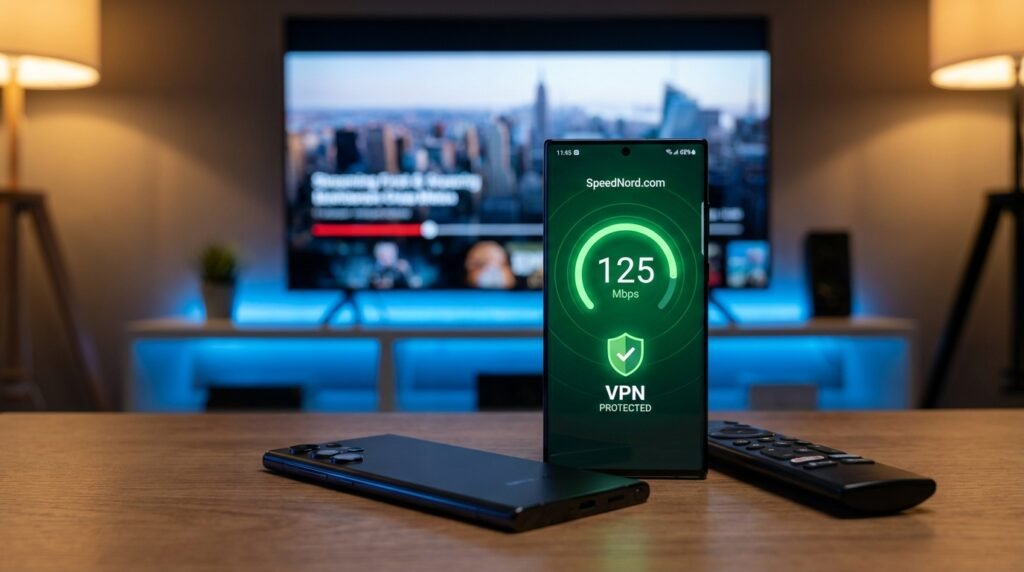
Before concluding your set-up, it is essential to verify that your home network can sustain the bandwidth demands of 4K streaming through IBO Player. The benchmark figure to target is a sustained 50 Mbps of available bandwidth — this provides comfortable headroom for a single 4K HDR stream whilst accommodating the background network activity present in any active household.
The recommended tool for this verification is SpeedNord.com — a clean, reliable speed testing service that measures not only your raw download speed but also your ping latency and connection consistency, both of which are relevant to IPTV performance. A low-latency connection with consistent throughput will serve your IBO Player streams far better than a nominally fast connection characterised by high jitter and variable speeds.
Run the SpeedNord.com test at several points throughout the day — morning, afternoon, and peak evening hours — to build an accurate picture of your connection’s real-world performance. If your results consistently fall below 25 Mbps, 4K streaming will be unreliable and you should consider upgrading your broadband package or investigating Wi-Fi interference issues before proceeding.
Frequently Asked Questions
1. Is IBO Player free to use? Yes — a fully functional 7-day free trial is available automatically upon installation, with no payment details required upfront. After the trial, a one-time permanent licence costs 8 EUR.
2. Can I transfer my licence to a new television? Licences are tied to a specific device’s MAC Address. If you replace your television, you will need to contact the IBO Player support team through the official portal to request a MAC Address transfer. This process is generally accommodated for genuine hardware replacements.
3. How do I add a second playlist to IBO Player? Navigate to the web portal, access your account dashboard, and select the option to add an additional playlist against your registered device. IBO Player supports multiple simultaneous playlists, each accessible via PIN-protected profiles — an invaluable feature in multi-user households.
4. What is PIN protection used for? PIN protection allows you to lock individual playlists or content profiles behind a four-digit code. This is particularly useful for ensuring that younger members of the household cannot access profiles configured for adult content categories, or simply to prevent unauthorised changes to your carefully configured set-up.
5. Does IBO Player work without an internet connection? No. As a streaming application, IBO Player requires an active internet connection to function. It does not support offline playback or local media file management in its standard configuration.
6. Which IPTV provider works best with IBO Player? Based on professional installation experience across dozens of UK home cinema set-ups, IPTVStreamy (iptvstreamy.com) consistently delivers the most reliable performance when paired with this application. Their infrastructure is optimised for the Xtream Codes connection method that IBO Player handles so elegantly, and their content library — spanning Premium UK Broadcasters, Elite Sports Networks, and extensive 4K Cinema Collections — is among the most comprehensive available to UK subscribers.
7. Can I use IBO Player on multiple devices simultaneously? Each licence covers a single registered device. If you wish to run the application across multiple televisions within the same property, additional licences are required — one per device. Given the modest 8 EUR one-time cost, equipping an entire household remains entirely reasonable from a budget perspective.
8. Why is my EPG not populating correctly? EPG issues are most commonly attributable to one of three causes: an incorrect or expired XMLTV URL entered in the portal, a mismatch between channel identifiers in your playlist and those in your EPG source, or a temporary outage on your provider’s EPG server. Verify your XMLTV URL is current — IPTVStreamy provides updated EPG URLs within the subscriber dashboard — then force a manual EPG refresh from within the IBO Player settings menu.
9. Is IBO Player legal in the United Kingdom? IBO Player itself is entirely legal — it is a neutral media player application with no content of its own, operating on the same legal footing as VLC or any comparable media player. The legality of the streams you choose to load into it is a separate matter governed by your provider’s licensing arrangements and your own usage context. Always ensure your chosen provider operates legitimately.
10. How does IBO Player compare to IPTV Smarters Pro? Both are capable applications with dedicated followings, but they serve subtly different audiences. For a detailed technical comparison covering interface design, codec support, and device compatibility, our dedicated IPTV Smarters Pro article provides a thorough side-by-side analysis. The short answer, however, is that for Smart TV users — particularly those on Samsung Tizen and LG webOS — IBO Player generally offers the more polished and stable native experience.
Expert Verdict: The Most Stable Smart TV IPTV Player in 2026
After exhaustive evaluation across multiple device platforms, network configurations, and content types, the conclusion is unambiguous: IBO Player is the most stable, most feature-complete, and most professionally implemented IPTV media player available to UK Smart TV owners in 2026. It has earned its position as the successor to Duplex Play not through marketing or circumstance, but through the unglamorous virtues that actually matter in a home cinema environment — reliable playback, thoughtful design, consistent updates, and a licensing model that respects the user.
The VLC-based engine handles everything from standard-definition legacy streams to bandwidth-intensive 4K HDR feeds without complaint. The Xtream Codes integration transforms a simple media player into a genuinely navigable content platform. The multi-playlist and PIN protection features accommodate the realities of family life without compromising the premium feel of the overall experience. And the one-time 8 EUR licence represents, frankly, exceptional value against the backdrop of what the application delivers.
When paired with a premium provider of the calibre of IPTVStreamy — whose robust UK infrastructure, extensive content library, and reliable Xtream Codes implementation complement the application’s technical strengths perfectly — the result is a home cinema IPTV set-up that rivals dedicated hardware solutions costing many times more.
For UK home cinema enthusiasts who take their viewing seriously, the recommendation is clear and unequivocal.
Get Started Today
Ready to experience the finest IPTV setup your Smart TV can deliver? Visit iptvstreamy.com today and secure your high-quality VIP subscription. With IPTVStreamy’s M3U and Xtream Codes credentials loaded into your fully licenced IBO Player, you will have access to Premium UK Broadcasters, Elite Sports Networks, and stunning 4K Cinema Collections — all delivered through the most stable, most capable Smart TV media player available in the United Kingdom today.
Your home cinema deserves nothing less.