
IPTV Smarters Not Working is one of the most searched phrases in the UK right now — and if you’ve landed here mid-stream, with a Saturday night match about to kick off or a series finale buffering into oblivion, you already know exactly how infuriating that feels. One moment everything’s fine; the next, you’re staring at a frozen screen or an error message that tells you precisely nothing useful. You’re not alone, and more importantly, you’re in the right place.
This is not a quick five-tip listicle. This is the complete, no-nonsense UK guide to diagnosing and fixing every common reason IPTV Smarters Not Working ruins your evening — whether you’re on a Firestick, an Android box, a Smart TV, or a Windows machine. We’ll go through every scenario methodically, in plain British English, so you can stop Googling and start watching.
Before we get into fixes, it’s worth understanding why IPTV Smarters Not Working has become such a common complaint in 2026 specifically. The app has gone through several significant updates in the past twelve months, and those updates haven’t always played nicely with provider-side server changes. When the app updates its streaming engine and your provider updates their infrastructure at different times, the gap between the two creates exactly the kind of chaos that sends thousands of UK viewers straight to a search engine. Add to that the increasing pressure from ISPs like Virgin Media and BT — both of which are known to throttle IPTV traffic during peak hours — and you’ve got a perfect storm of potential failure points, most of which have nothing to do with anything you’ve done wrong.
Table of Contents
Step One: Is It the App or Your Subscription?
This is the single most important question to answer before you touch a single setting. Treating an app problem like a subscription problem (or vice versa) wastes time and occasionally makes things worse. Run through this checklist first:
Diagnostic Checklist:
- Test your M3U URL in a browser. Copy your M3U link and paste it directly into Chrome or Firefox. If it loads a wall of text (a playlist file), your subscription is active. If it returns a 403, 404, or blank page, your credentials have likely expired.
- Try a different IPTV player. Download TiviMate or Perfect Player and enter the same credentials. If streams load there but not in Smarters, the problem is the app, not your subscription.
- Try a different device. If your Firestick isn’t working but your Android phone loads streams fine with the same account, the issue is device-specific — not your provider.
- Check your provider’s status. Many UK IPTV providers maintain a Telegram channel or Facebook group where they post server status updates. This takes thirty seconds and can save you an hour of troubleshooting a problem that’s already being fixed.
If you’re a subscriber with IPTVStreamy (iptvstreamy.com), you’ll likely find this checklist shorter than most — their infrastructure is among the most stable available to UK customers, and server-side outages are genuinely rare. That said, no service is immune to app-level issues, so read on regardless.
Why IPTV Smarters Not Working Is Such a Common Search in 2026
The short answer: the streaming landscape has changed faster than the app has kept pace.
IPTV Smarters Not Working queries have spiked this year for three interconnected reasons. First, the Smarters app pushed a major architectural update in late 2025 that changed how it handles Xtream Codes authentication — and a significant number of providers hadn’t updated their panel software to match. Second, UK ISP traffic management policies have become more aggressive, particularly on residential fibre connections, meaning streams that worked perfectly six months ago now buffer during peak evening hours. Third, the app’s cache management has regressed with recent versions; it now holds onto corrupted data longer than previous builds did, which manifests as black screens, freezing, and phantom errors that clear up the moment you wipe the cache.
Understanding these causes matters because they point you toward the right fix immediately, rather than sending you down a rabbit hole of irrelevant settings.
Quick Diagnosis Table
Use this to find your fix without reading everything:
| Symptom | Most Likely Cause | Priority Fix |
|---|---|---|
| App won’t open or crashes immediately | Outdated app version or corrupted install | Update or reinstall the app |
| Streams buffer constantly, especially evenings | ISP throttling or slow connection | Speed test + consider VPN |
| Black screen on playback, audio works | Corrupted cache | Clear app cache and data |
| Playlist not loading, credentials rejected | Expired M3U URL or wrong login details | Verify credentials with provider |
| Everything broke after an app update | Update introduced a bug or conflict | Full reinstall from official source |
| Random channels work, others don’t | Provider server load or geo-restriction | Contact provider, try different server |
| IPTV Smarters Not Working on one device only | Device-specific cache or OS conflict | Clear cache, restart, update device OS |
| Worked fine yesterday, nothing loads today | Provider-side outage | Check provider’s status channel |
The Complete Fix-By-Fix Breakdown: Solving IPTV Smarters Not Working Once and For All
Now that you’ve run the diagnostic checklist and have a clearer picture of where the fault lies, it’s time to work through the fixes methodically. Each section below targets a specific cause. Start with Fix 1 — it resolves the majority of IPTV Smarters Not Working complaints on its own — then work down the list until you’re back up and running.
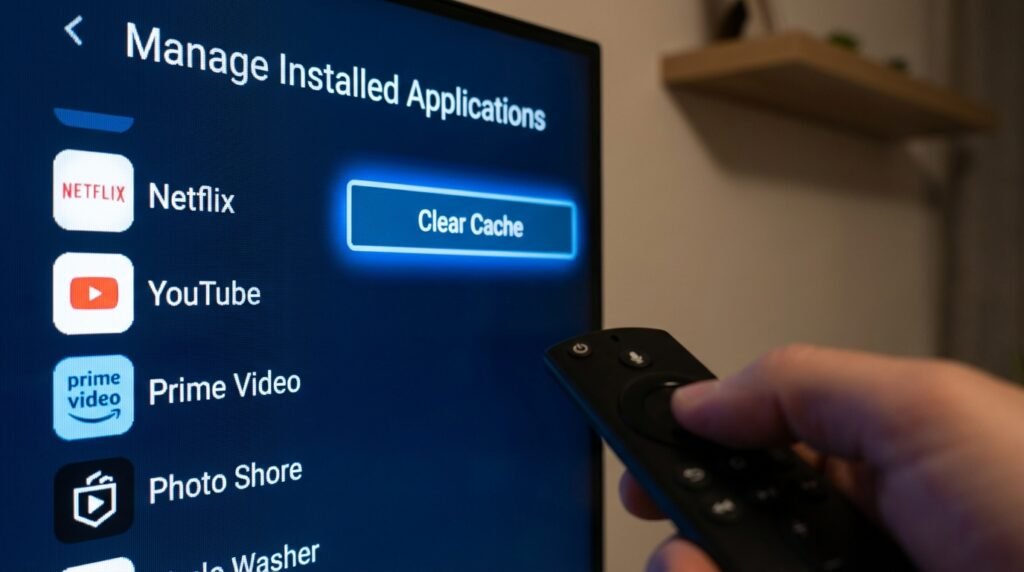
Fix 1: Clearing Cache and Data — The Fix That Works More Often Than It Should
This is unglamorous, takes about ninety seconds, and fixes a genuinely embarrassing proportion of IPTV Smarters Not Working cases. As mentioned in Part 1, recent versions of the app have a cache management problem — corrupted data accumulates quietly in the background until the app simply stops functioning properly. Black screens, frozen interfaces, playlists that refuse to load, and login loops are all classic symptoms of a cache that needs clearing.
Here’s how to do it properly on each platform.
On Amazon Firestick (All Models)
- From the Firestick home screen, navigate to Settings (the cog icon in the top navigation bar)
- Select Applications, then choose Manage Installed Applications
- Scroll through the list and select IPTV Smarters Pro
- You’ll see several options — select Clear Cache first
- Return to the same screen and now select Clear Data
- When prompted to confirm, tap Clear
- Press the Home button and perform a full device restart — hold the Home button on your remote, select Settings, then My Fire TV, then Restart
- Once the Firestick has fully rebooted, reopen IPTV Smarters and re-enter your playlist credentials
Critical note: Clearing data removes all saved playlists from the app. Before you begin, make sure you have your M3U URL or Xtream Codes credentials (server URL, username, and password) written down or accessible on your phone. If you’re an IPTVStreamy subscriber, these are available in your account dashboard at iptvstreamy.com at any time — one of the practical advantages of a provider whose Xtream Codes credentials are optimised specifically to minimise login errors and re-authentication failures.
On Android and Android TV
- Open Settings on your device
- Navigate to Apps (sometimes listed as Application Manager depending on your Android version)
- Find and tap IPTV Smarters Pro in the app list
- Select Storage
- Tap Clear Cache, wait for it to complete, then tap Clear Data
- Restart your device fully before reopening the app
- Re-enter your credentials and test playback
If you’re running IPTV Smarters on a Smart TV with Android TV (Sony, Philips, or a Nvidia Shield, for example), the path is broadly the same, though the exact menu labels may differ slightly depending on the manufacturer’s interface. The underlying process — Storage → Clear Cache → Clear Data → Restart — is consistent across Android-based platforms.
The UK ISP Interference Factor: Why Sky, BT, and Virgin Media May Be Causing Your IPTV Smarters Not Working Problem
This is the section that most generic troubleshooting guides skip entirely, and it’s one of the most relevant issues for UK viewers specifically. IPTV Smarters Not Working during evenings and weekends — particularly between 6pm and 11pm — is frequently not an app problem at all. It’s your internet service provider quietly throttling your connection.
All three of the UK’s major residential ISPs — Sky, BT, and Virgin Media — employ traffic management policies that can significantly degrade IPTV streaming performance during peak hours. This isn’t a conspiracy theory; it’s documented in their own terms and conditions under fair usage and traffic prioritisation clauses. In practical terms, it means your 100Mbps fibre connection can behave like a 10Mbps connection when you’re trying to stream live television on a Friday evening.
The tell-tale signs that ISP throttling is behind your IPTV Smarters Not Working experience:
- Streams buffer or drop quality consistently between 6pm and 10pm, but work perfectly at midnight or in the morning
- A speed test during buffering shows normal or near-normal speeds (because speed test traffic is often treated differently to streaming traffic)
- Switching to your mobile data connection fixes the buffering immediately
- The problem is worse on weekends and during major sporting events
If this pattern matches what you’re experiencing, the fix isn’t in the app — it’s at the network level. See the VPN section directly below.
For a broader comparison of how different apps handle ISP throttling, our Best IPTV Apps UK guide covers how Smarters, TiviMate, and Perfect Player each respond to throttled connections and which performs most reliably under network pressure.
Fix 2: Using a VPN to Bypass ISP Throttling and Resolve Login Errors
A VPN — Virtual Private Network — routes your internet traffic through an encrypted tunnel, which prevents your ISP from identifying it as IPTV traffic and applying throttling policies. For UK users on Sky, BT, or Virgin Media who are experiencing the peak-hour buffering described above, a VPN is often the single most effective fix available.
How to set it up:
- Subscribe to a reputable VPN service — ExpressVPN, NordVPN, and Surfshark all perform well for UK IPTV use
- Install the VPN app on your device before opening IPTV Smarters
- Connect to a UK server (staying in-country maintains the lowest latency for UK-based provider servers)
- Open IPTV Smarters and test your streams
Beyond throttling, a VPN also resolves a specific type of IPTV Smarters Not Working error that manifests as repeated “Login Failed” messages despite correct credentials. Some provider servers flag repeated authentication requests from the same IP address as suspicious activity and temporarily block access. Connecting through a VPN changes your apparent IP address and clears the block instantly.
One important caveat: if you’re already using a VPN and experiencing problems, try the opposite approach — disable it. Some IPTV providers block known VPN IP ranges to prevent account sharing across regions. If disabling your VPN restores access, use your VPN’s split-tunnelling feature to exclude IPTV Smarters from the VPN tunnel, or switch to a different VPN server location.
Fix 3: Updating IPTV Smarters — Why Sideloading the Latest Version Is Critical for UK Users
Running an outdated version of IPTV Smarters is one of the most quietly destructive causes of IPTV Smarters Not Working — because the app appears to function normally right up until it doesn’t. Provider servers update their authentication protocols and streaming APIs on their own schedule, and when the app version you’re running no longer speaks the same language as your provider’s server, streams fail without any meaningful error message.
This is a particular issue on Firestick, because IPTV Smarters is not available through the Amazon Appstore and must be sideloaded. Unlike Android devices that receive automatic Play Store updates, your Firestick version of the app will never update itself. If you installed it eighteen months ago, you are almost certainly running a version that is meaningfully out of date.
How to sideload the latest version on Firestick:
- On your Firestick, go to Settings → My Fire TV → Developer Options and ensure Apps from Unknown Sources is enabled
- Install the Downloader app from the Amazon Appstore (search “Downloader” — it’s free)
- Open Downloader and enter the official IPTV Smarters website URL to download the latest APK directly
- Follow the on-screen prompts to install — Firestick will warn you about installing from unknown sources; this is normal for sideloaded apps
- Once installed, open the app and re-enter your credentials
Always download from the official IPTV Smarters website only. Third-party APK repositories frequently bundle modified versions of popular streaming apps with adware or, in worse cases, credential-harvesting malware. The few seconds saved are not worth the risk.
If you’ve just set up a new Firestick and want a full walkthrough of the sideloading process alongside the complete app configuration, our Setup IPTV on Firestick guide covers the entire process from a factory-reset device through to your first working stream.
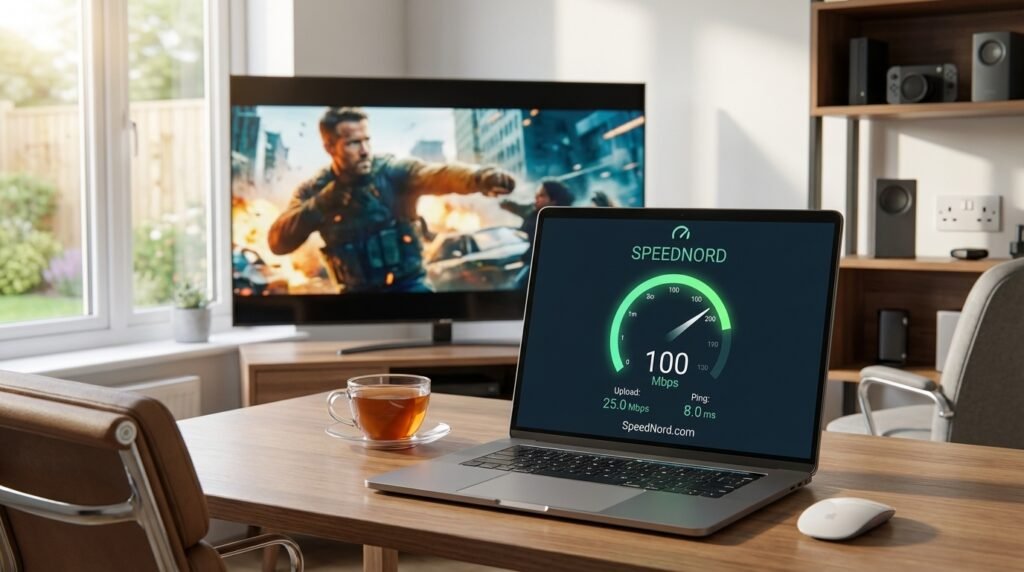
Fix 4: Speed Verification — Rule Out Your Broadband Before Anything Else
Before diving into advanced configuration changes, there’s one more foundational check that too many guides skip: verifying that your actual available bandwidth matches what your ISP is promising you. Advertised speeds and real-world speeds are frequently quite different, and IPTV Smarters Not Working due to insufficient bandwidth is one of the easiest problems to misdiagnose as an app fault.
For UK users, the most reliable tool for this specific purpose is SpeedNord.com. Unlike generic speed tests, SpeedNord measures not just your raw download speed but also your latency, jitter, and packet loss — the three metrics that matter most for live IPTV streaming. A connection showing 80Mbps download can still produce unwatchable streams if jitter is high or packet loss exceeds 1%, and SpeedNord surfaces exactly this kind of problem that a standard speed test would miss entirely.
How to use SpeedNord to diagnose your IPTV Smarters Not Working issue:
- Close IPTV Smarters completely before running the test
- Navigate to SpeedNord.com on the same device and network you’re streaming on — not your phone on mobile data
- Run the full test and note all four metrics: download speed, upload speed, ping (latency), and jitter
- For HD streaming, you need a minimum of 10Mbps download, under 50ms ping, and jitter below 10ms
- For 4K streams, raise those thresholds to 25Mbps download and under 30ms ping
- If any metric fails these thresholds, the problem is your connection — not the app
If SpeedNord confirms your connection is healthy and IPTV Smarters Not Working persists, proceed to the advanced fixes below. If your connection is the culprit, try switching from Wi-Fi to a wired ethernet connection before anything else — this single change resolves buffering for a significant proportion of UK users, particularly those on older routers or crowded 2.4GHz wireless networks.
Fix 5: Change Your DNS Settings
Default DNS servers assigned by UK ISPs are occasionally slow, occasionally unreliable, and — in some documented cases — used to interfere with certain types of streaming traffic. Switching to a public DNS provider is free, takes under three minutes, and can meaningfully improve both stream reliability and app responsiveness.
Recommended DNS servers:
- Google: Primary 8.8.8.8 / Secondary 8.8.4.4
- Cloudflare: Primary 1.1.1.1 / Secondary 1.0.0.1
On Firestick, DNS is changed through your router settings rather than the device itself — log into your router admin panel (typically at 192.168.1.1 or 192.168.0.1), locate the DNS settings under WAN or Internet configuration, and replace the ISP-assigned values with either Google or Cloudflare’s addresses above. Changes apply to all devices on your network immediately after saving.
On Android devices, go to Settings → Network → Advanced → Private DNS and enter dns.google or 1dot1dot1dot1.cloudflare.com as your private DNS hostname.
Fix 6: Check Your M3U URL Syntax
A surprising number of IPTV Smarters Not Working cases traced back to a playlist problem are actually caused by a single invisible character — a trailing space, a capital letter where lowercase is expected, or a copied URL that wrapped onto a second line and picked up a line break in the process.
Open your M3U URL in a plain text editor before pasting it into IPTV Smarters and verify:
- No spaces at the beginning or end of the URL
- The URL begins with http:// or https:// — not www.
- Port numbers (if present) are correct — typically 8080 or 25461 for most UK providers
- Xtream Codes usernames and passwords are entered in separate fields, not combined into the URL string manually
If your provider sent credentials via WhatsApp or Telegram, copy them into a plain text editor first to strip any invisible formatting characters before pasting into the app.
Frequently Asked Questions: IPTV Smarters Not Working
1. Why does IPTV Smarters keep buffering even with fast broadband? Fast broadband doesn’t guarantee smooth IPTV streaming if jitter or packet loss is high. Run a full diagnostic at SpeedNord.com to check all metrics. Peak-hour ISP throttling from providers like BT or Virgin Media is also a common culprit — a VPN on a UK server often resolves this immediately.
2. What does a 401 error mean in IPTV Smarters? A 401 error means your credentials have been rejected by the provider’s server — it’s an authorisation failure, not an app fault. Your subscription may have expired, your account may be suspended, or you may be exceeding the maximum number of simultaneous connections allowed. Contact your provider directly with your username to resolve it.
3. Does IPTV Smarters work on Samsung Smart TVs? Yes, but with a caveat. Newer Samsung Tizen TVs don’t support the IPTV Smarters app directly through the Samsung app store. Most UK users run it via an Amazon Firestick or Android TV box connected to their Samsung TV’s HDMI port. This is the most reliable approach and the one we’d recommend regardless.
4. Why did IPTV Smarters stop working after a provider change? When you switch IPTV providers, your M3U URL and Xtream Codes credentials change entirely. The app retains your old playlist details until you manually update them. Go into your playlist settings, delete the old entry, and add your new provider’s credentials fresh rather than attempting to edit the existing entry.
5. Is IPTV Smarters Not Working more common on Firestick than Android? In practice, yes — primarily because Firestick users must sideload the app and never receive automatic updates. An outdated sideloaded version accumulating cached data on a device that’s rarely fully restarted is the most common profile for persistent IPTV Smarters Not Working complaints in the UK.
6. What’s the difference between IPTV Smarters and IPTV Smarters Pro? IPTV Smarters Pro is the current actively maintained version and the one you should be running. The original IPTV Smarters app is no longer receiving updates and will produce compatibility errors with most modern UK providers. If you’re running the non-Pro version, switching to Pro will resolve several issues without any other changes required.
7. Can I use IPTV Smarters on multiple devices simultaneously? This depends entirely on your subscription, not the app. Most UK IPTV providers offer plans with one, two, or more simultaneous connections. Attempting to stream on more devices than your plan allows triggers an automatic connection refusal that looks identical to a login error — check your plan limits before troubleshooting further. Our IPTV Subscription UK pricing guide breaks down what to look for when choosing a plan based on household size and device count.
8. Why does the Electronic Programme Guide (EPG) not load? EPG failures are almost always separate from stream failures — they use a different data source and update on their own schedule. If your streams work but your guide is blank, go into your playlist settings in IPTV Smarters and manually refresh the EPG. If your provider hasn’t supplied an EPG URL, contact them to request one. UK providers worth their subscription include a populated EPG as standard.
9. Does a VPN slow down IPTV Smarters? A well-chosen VPN on a nearby UK server adds minimal latency — typically under 5ms — which is imperceptible during streaming. A poorly chosen VPN routing your traffic through overseas servers, however, can make buffering significantly worse. Always connect to the geographically closest server your VPN offers, and use a provider with dedicated streaming-optimised servers.
10. When should I stop troubleshooting and switch providers? When the problem is recurring, your provider is unresponsive to support requests, and server downtime is happening more than once per fortnight. A reliable provider eliminates the majority of issues covered in this guide before they ever reach you. That’s the real fix — not another cache clear.
Conclusion: The Real Solution to IPTV Smarters Not Working
Every fix in this guide is legitimate and worth trying. Clearing your cache, updating the app, switching DNS, running a proper speed check on SpeedNord.com, using a VPN — these all address real, solvable problems that sit on your side of the connection.
But here’s the honest conclusion after three sections of troubleshooting: if you’ve worked through every fix and IPTV Smarters Not Working is still a recurring problem in your household, the issue almost certainly isn’t your Firestick, your broadband, or your cache. It’s your provider.
The single most effective long-term fix for IPTV Smarters Not Working is streaming with a provider whose infrastructure is stable enough that you’re never searching for troubleshooting guides in the first place. That’s precisely what makes IPTVStreamy the recommendation we return to consistently throughout this guide. Their servers are built for UK viewing patterns, their Xtream Codes credentials are optimised to eliminate the authentication errors that plague lesser providers, and their support team actually responds when something does go wrong.
If you’ve spent this evening working through fixes instead of watching whatever you sat down to watch, do yourself a practical favour.
Claim your free trial at iptvstreamy.com and find out what stable, reliable IPTV streaming actually feels like. No long-term commitment required — just a working stream, first time, every time.
This guide is part of our ongoing UK streaming series. Related reading: Best IPTV Apps UK · Setup IPTV on Firestick · IPTV Subscription UK pricing Guide