
There’s a reason IPTV enthusiasts rarely switch away from TiviMate once they’ve tried it. The TiviMate IPTV Player simply does things that no other application comes close to — a fluid, television-native interface, rock-solid performance across massive channel libraries, and a level of customization that feels almost obsessive in the best possible way. But here’s what most newcomers miss: getting the full experience requires knowing your way around the settings. Out of the box, even the best hardware is just scratching the surface of what this app can do.
Whether you are fresh off your first tivimate apk install or you have been using the app for months with nagging issues you never got around to fixing, this guide has something for you. It covers everything — from first-time setup and playlist configuration to the deep performance tuning that most guides completely ignore — so you can stop guessing and start streaming the way you actually deserve to.
Table of Contents
What Is TiviMate Premium and Why Does It Matter?
Before anything else, it helps to understand what you’re actually working with. TiviMate premium is a licensed tier of the TiviMate IPTV Player — one of the most polished Android TV applications ever built for streaming live television. It’s not a channel source. It doesn’t come with content baked in. Think of it like a high-end DVD player: exceptional hardware, but it still needs a disc. In this case, that “disc” is your iptv subscription, which provides the actual channels, VOD libraries, and program guide data.
What separates TiviMate premium from the free version — and from every competing player — is the combination of features that genuinely transform the streaming experience. Multiple playlist support, full EPG customization, Multi-View, scheduled recording, and unrestricted UI theming are all locked behind the premium license. For anyone serious about IPTV, these aren’t optional add-ons; they’re essential.
The pricing is also remarkably fair. A yearly subscription runs approximately $10–$11 USD, while the lifetime option sits around $30–$34 USD and covers up to five devices per account. For the quality of experience you’re getting, that’s borderline absurd value.
Hardware Compatibility: Where TiviMate Really Shines
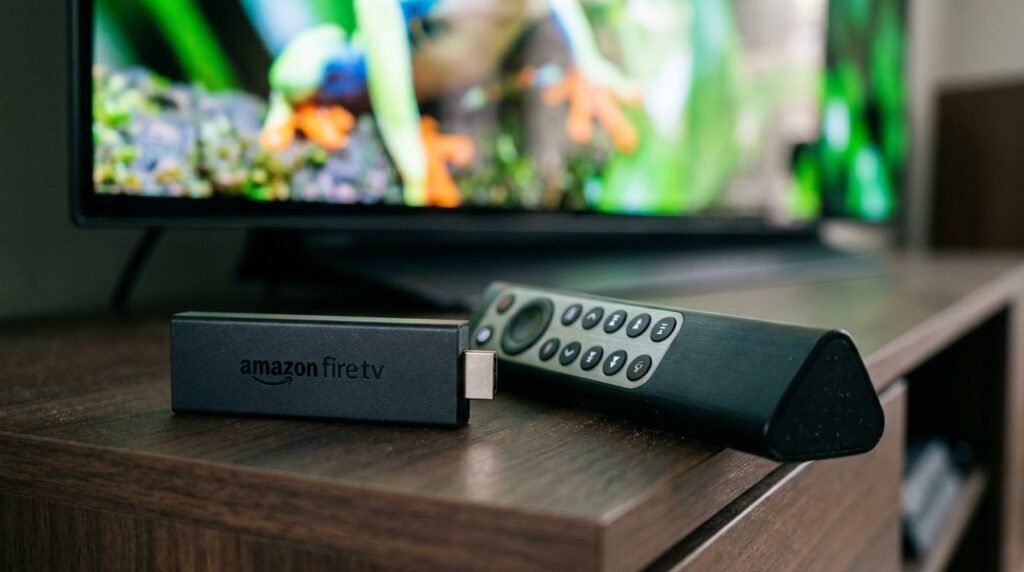
The TiviMate IPTV Player was designed ground-up for Android TV, and that architectural decision matters more than most people realize. It’s why the interface feels snappy on a streaming stick rather than sluggish, and why it handles playlists with 15,000+ channels without choking.
The three devices that pair best with TiviMate premium are the Nvidia Shield Pro, Amazon Fire TV Stick 4K Max, and the Chromecast with Google TV. Each of these brings a different strength — the Shield is the raw-power choice for dedicated home theater setups, while the Firestick remains the most popular for its affordability and wide availability.
One Firestick-specific issue worth flagging immediately: Amazon has a background process called “Auto Offload” that quietly deletes apps it considers inactive to reclaim storage. TiviMate gets hit by this more often than it should. Go into your Fire TV settings and disable Auto Offload before you even touch the app configuration. It’ll save you a frustrating afternoon.
While it is technically possible to run the TiviMate IPTV Player on tablets and Android phones, the interface is built for D-pad navigation — not touch screens. If you’re going that route, pair it with a Bluetooth remote and accept some minor usability limitations. One thing that doesn’t change regardless of hardware: iptv tivimate will outperform every alternative player you put up against it, because the underlying architecture was built for efficiency, not just features.
Getting the TiviMate APK Installed the Right Way
For most Android TV devices, installing the TiviMate APK is straightforward through the Google Play Store. However, Firestick users often need a slightly different approach because Amazon’s ecosystem doesn’t always cooperate with third-party apps.
The cleanest method for Firestick installation is sideloading via the Downloader app. You’ll need to enable “Apps from Unknown Sources” in your developer settings first, then use Downloader to pull the tivimate apk directly from the official source at tivimate.com. Always grab the tivimate apk from the official website — third-party APK repositories are not only unnecessary but actively risky from a security standpoint. Tampered builds have been found in the wild, and the official version is always free to download.
Once installed, the app immediately prompts you to add a playlist. Don’t rush this step. The connection method you choose here will affect how smoothly your EPG loads and how reliably your channels update.
Purchasing and Managing Your TiviMate Premium License
Purchases should be made through one of three authorized channels only: tivimate.com, the Google Play Store, or the TiviMate Companion app. Anything else is either pirated or a scam, and neither is worth the headache.
For Firestick users, the website method is genuinely the easiest. Sign up with an email, pay through the Stripe gateway, and you’re done in three minutes. You then log into your account within the app’s settings to activate the license.
For Android devices with Google Play access, you can purchase directly within the app under Settings → About. The subscription links to your Google account, which makes billing management easier.
For devices without Google Play (certain Fire OS models, for example), the TiviMate Companion app is your bridge. It’s an Android-only app that handles premium activation for devices that can’t access the Play Store directly.
Managing the Five-Device Limit
Each TiviMate premium account allows up to five simultaneous device activations. This is usually more than enough for a household, but if you’re powering a larger family setup, you’ll want to manage your slots actively. Log into tivimate.com, name each device something identifiable (not just “Fire TV” x5), and remove inactive hardware as needed.
If you genuinely need more than five slots, the only legitimate option is creating a second account with a separate email address.
Switching from Yearly to Lifetime
This is a question that comes up constantly in IPTV communities, and the answer is a bit tedious but straightforward. You must cancel your active yearly subscription through the Google Play Store, wait for it to fully expire (the app will drop to the free version temporarily), and then purchase the lifetime license. Your playlists and settings stay intact throughout this process as long as you don’t clear the app’s cache or data.
Setting Up Playlists and EPG: The Foundation of Everything
Once your TiviMate premium license is active, adding your content source is the next critical step. The IPTV TiviMate setup supports three connection methods:
- Xtream Codes API — The gold standard. You get a server URL, username, and password from your provider. This method auto-pulls EPG data and shows account expiration and connection limits directly in the app.
- M3U URL — A playlist link ending in .m3u or .m3u8. Works well but usually requires manually adding a separate EPG source link.
- Stalker Portal — Uses your device’s MAC address (generated by TiviMate). This is for providers that typically serve MAG or Formuler boxes.
For the best experience, Xtream Codes is almost always the right choice. If your best iptv providers gives you the option, take it. Once the connection is live, iptv tivimate will begin pulling your channel list and EPG data automatically — typically within a minute on a decent broadband connection. From that point forward, every channel update your IPTV subscription pushes out will sync to your guide without you needing to touch anything.
Running Multiple Playlists Like a Pro
This is where TiviMate premium genuinely leaves every other player in the dust. You can load multiple providers simultaneously — say, a primary iptv subscription for live channels and a secondary budget plan focused on sports — and merge them into one unified guide. Enable the “Merge” option in playlist settings and activate “Hide Duplicates” to keep things clean. The result looks and feels like a single, cohesive channel lineup regardless of how many providers are behind it.
Many sports fans who follow our guide on how to watch Premier League on IPTV UK end up using this exact setup: one reliable main provider plus a sports-specific backup for redundancy on big match days.
Fixing EPG Issues
A blank TV guide is one of the most common complaints from new users, and it’s almost always fixable. If your provider’s built-in EPG is patchy, add a supplementary external source in the EPG settings. The EPGShare and Open-EPG repositories are widely used and cover most English-language markets reliably.
If your guide shows the right programs but the times are off, adjust the “EPG Time Offset” in one-hour increments until it lines up with your local broadcasts. Also, set “Past days to keep EPG” to one day unless you actively use the Catch-up feature — this alone can free up several hundred megabytes of storage over time.
Performance Tuning: Driving TiviMate in Top Gear
Here’s a truth that most setup guides gloss over: the majority of people running IPTV TiviMate are doing it with default settings that leave significant performance on the table. These adjustments are what separate a good experience from a genuinely great one.
Auto Frame Rate (AFR)
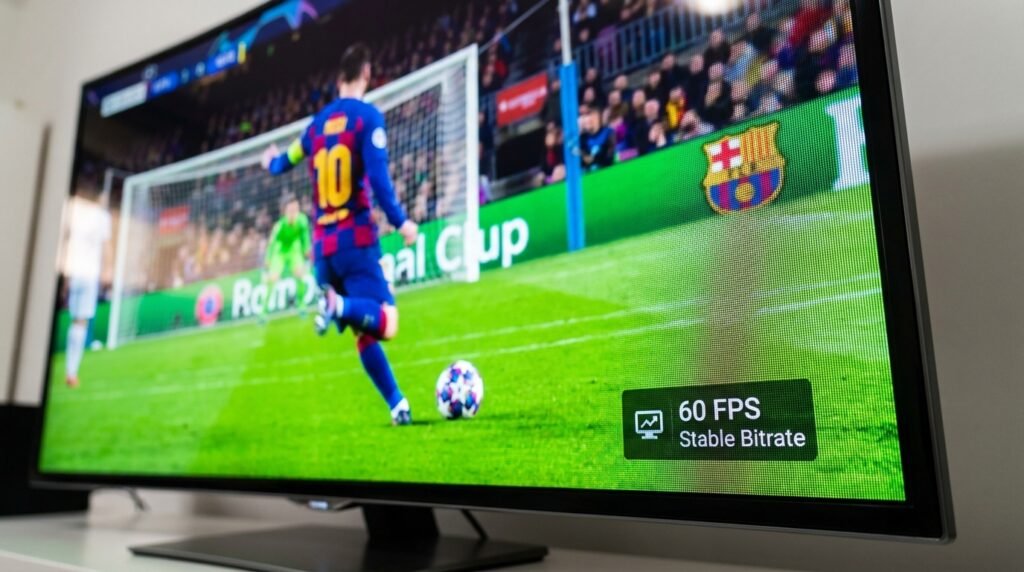
This single setting does more for picture quality than any hardware upgrade you could make. Most European football broadcasts run at 50Hz, cinema releases at 24Hz, and US sports content at 60Hz. With AFR enabled, TiviMate premium automatically signals your television to match its refresh rate to the incoming stream. The result is zero motion judder and no unnecessary frame interpolation. If you’re a sports fan — and especially if you follow iptv for Sports World Cup content — this is non-negotiable.
The brief black screen you see when switching channels is simply the TV recalibrating its refresh rate. It’s normal, and it’s worth it.
Buffer Size
If you experience mid-stream buffering with your IPTV subscription, the buffer settings are your first stop. A larger buffer tells the app to pre-download more video data before playback starts, which smooths out streams on inconsistent connections. The trade-off is slightly slower channel-switching speeds. For most users on stable broadband, the “Medium” setting hits the right balance. On weaker connections or WiFi, bump it to “Large.”
User-Agent Masking
Some ISPs throttle or block traffic identified as coming from IPTV applications. If you’re seeing Error 401 responses or inconsistent playback on a connection that otherwise tests fast, changing the User-Agent in TiviMate’s general settings can solve the problem entirely. Setting it to “VLC” is the most effective option in the majority of cases, as VLC traffic rarely gets flagged.

Multi-View and Recording: The Premium Features That Justify the Price
If you needed one argument for why TiviMate premium is worth every penny of the lifetime fee, Multi-View and recording are it.
Multi-View
Multi-View allows up to nine simultaneous channels on a split screen. For a Sunday when five games are running concurrently — whether it’s the Premier League, La Liga, or iptv for Sports World Cup coverage — this feature is transformative. The key requirement is a provider that allows multiple concurrent streams. Without that, adding a second screen will just buffer the first. A clever workaround is loading screens from different provider playlists to distribute the connection load.
Recording
Recording with the TiviMate IPTV Player is powerful but requires some storage planning. UHD streams can consume roughly 6GB per hour, which makes Firestick internal storage impractical for anything beyond short clips.
The recommended approach is SMB recording directly to a Windows PC or NAS device on your local network. This keeps recordings off your streaming device entirely, centralizes your library, and allows playback from any device on the network. For users with a Nvidia Shield Pro, this setup is particularly seamless.
The custom recording scheduler is another feature worth highlighting. Unlike basic instant recording, it allows you to set specific start and end times and create repeating schedules — useful for series or weekly sports fixtures you don’t want to miss.
Security, Privacy, and Database Maintenance
Long-term reliability with the TiviMate APK comes down to two things: good security habits and regular database hygiene.
VPN and DNS
A VPN isn’t strictly required to use IPTV TiviMate, but it’s strongly recommended. It encrypts your traffic, prevents ISP throttling, and resolves Error 458 (Region Blocked) by masking your geographic location. For users in the UK seeking access to international content alongside their Best IPTV UK subscription, a VPN set to the appropriate region makes a meaningful difference.
On the DNS side, switching from your ISP’s default DNS to Cloudflare (1.1.1.1) or Google (8.8.8.8) is a free, five-second change that can measurably improve EPG loading speeds and resolve intermittent “No Information” guide errors.
Keeping the Database Clean
As your playlist library grows, the TiviMate APK accumulates EPG data, cached channel logos, and thumbnail images that can add up to gigabytes over months of use. Every few weeks, go into Appearance settings to clear the logos cache and into EPG settings to clear and re-fetch the guide data. This keeps the app responsive and prevents the sluggishness that some users incorrectly blame on their hardware.
The Backup You’ll Be Glad You Made
Set up automated backups the moment you finish configuring your setup. A TiviMate backup file captures everything — playlists, merged groups, favorites, playback settings, and UI customizations. Store it in a cloud location (Dropbox works well via the Xplore file manager) or on an SMB share. If your device ever dies or you upgrade hardware, restoring your full setup takes under five minutes.
UI Customization: Making It Yours
Part of what makes TiviMate premium feel so premium is how deeply you can tailor the interface. Color themes (the Dark and Blue options are community favorites), font sizes, panel transparency, and animation speeds are all adjustable.
Beyond aesthetics, the organizational tools are genuinely useful. Custom channel groups let you build curated lineups — a “Sunday Sport” group, a dedicated news block, a kids’ section with only appropriate channels visible. The Channel Name Editor is a hidden gem: it strips out the ugly provider prefixes like “US |” or “| FHD |” from channel names automatically, leaving a clean, professional-looking guide.
For VOD content, TiviMate premium displays your provider’s movie and series libraries with poster art, descriptions, and in some cases YouTube trailer links. If a particular codec isn’t handled by TiviMate’s internal player, you can route playback to VLC or MX Player as an external option without losing your place in the guide.
Error Reference: What’s Actually Going Wrong
Knowing your error codes saves time and frustration:
- Error 401 — Your IPTV subscription credentials are wrong or the subscription has expired. Check with your provider first.
- Error 456 — Maximum connections exceeded. Force-stop TiviMate on other active devices.
- Error 458 — Geographic block. A VPN resolves this in most cases.
- Error 504 — The provider’s server is down or overloaded. Nothing to do on your end but wait.
- Black Screen on Channel Change — Almost always AFR adjusting the refresh rate. Normal behavior.
- EPG Not Updating — Clear the EPG cache, verify the source URL has no trailing spaces, and re-fetch.
Final Verdict: Is TiviMate Premium Worth It in 2026?
Spending 30 dollars once to get a lifetime of the best IPTV player on the market is not a difficult decision to justify. TiviMate premium is the rare app that genuinely earns its reputation — not through marketing, but through the kind of thoughtful engineering that makes daily use feel effortless.
The caveat, as always, is that the app is only as good as what you feed it. A mediocre IPTV subscription paired with TiviMate premium will still feel mediocre. Pair it with a quality provider from our best iptv providers guide, dial in the performance settings from this article, and you’ll have a home entertainment setup that genuinely rivals — and in many ways surpasses — traditional cable or satellite services.
Keep your database clean, back up your settings regularly, and don’t skip the AFR configuration. Do those three things, and IPTV TiviMate will reward you with years of smooth, frustration-free viewing. In 2026 and well beyond, no other player comes close.