
If you’ve spent any time in the world of cord-cutting, you already know that not all streaming apps are created equal. Some are clunky. Some crash mid-match. Some look like they were designed in 2009 and left to rot. And then there’s the TiviMate IPTV player — a piece of software so polished, so genuinely feature-rich, that once you use it, going back to anything else feels like a downgrade you simply refuse to accept.
This is the guide you bookmark and return to. Whether you’re setting up your first Firestick or you’ve been around long enough to remember when Kodi was the only game in town, this handbook covers everything: installation, premium activation, EPG management, recording, buffering fixes, and the legitimate safety questions people don’t always ask out loud.
Let’s get into it.
Table of Contents
What Is TiviMate — And Why Does It Matter in 2026?
First things first: the TiviMate IPTV player is not a content provider. It doesn’t give you channels, it doesn’t bundle subscriptions, and it doesn’t host anything. Think of it as the television set, not the cable company. What it does — and does exceptionally well — is take your existing IPTV subscription and display it through a clean, responsive, cable-TV-style interface complete with an electronic program guide, catch-up support, multi-screen viewing, and DVR functionality.
That distinction matters for two reasons. One, it means the legality of TiviMate itself is clear: the app is available on the Google Play Store, it’s listed on the Amazon Appstore, and it has never hosted a single unauthorized stream. Two, it means the quality of your experience will always depend, in part, on whichever service you’re pairing it with. A solid IPTV subscription paired with TiviMate is genuinely excellent television. A dodgy provider paired with TiviMate is still a dodgy provider — just with better UI.
That said, for anyone who’s already chosen one of the best IPTV providers and wants to get the most out of their streams, the TiviMate IPTV player is, without exaggeration, the standard against which everything else is measured.
Hardware Compatibility and What You Need Before You Start
Choosing Your Device
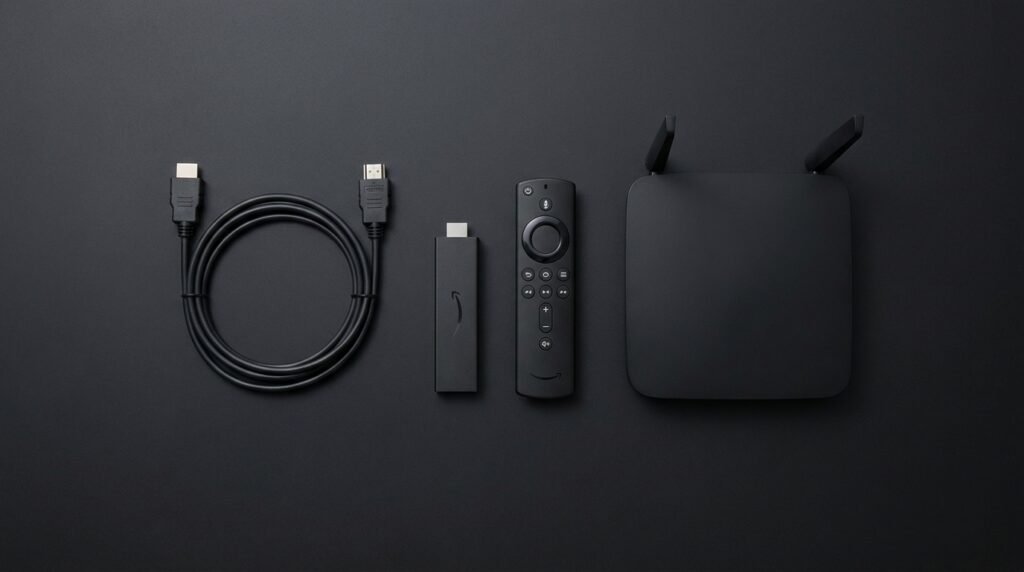
The TiviMate IPTV player is built specifically for Android TV environments. That covers a wider range of hardware than people often realize:
- Amazon Firestick (2nd Gen, 4K, 4K Max, Lite) — the most popular pairing
- Nvidia Shield TV and Shield Pro — the premium option with the best performance
- Android TV boxes running Android 5.0 or above
- Chromecast with Google TV
- Phones and tablets running standard Android — functional, but navigation without a remote feels awkward since the interface is designed for D-pad control
Before you download a single file, tick off this checklist:
- A stable internet connection — wired Ethernet is always preferable for IPTV; if you’re on Wi-Fi, make sure your signal is strong where the device lives
- A valid IPTV subscription from a provider that supplies an M3U URL, Xtream Codes credentials, or a Stalker Portal address
- Enough free storage — the TiviMate apk itself is lightweight, but EPG data and recordings can accumulate fast
- The Downloader app installed (for Firestick sideloading)
Installing the TiviMate APK — Step by Step
Getting It on Firestick
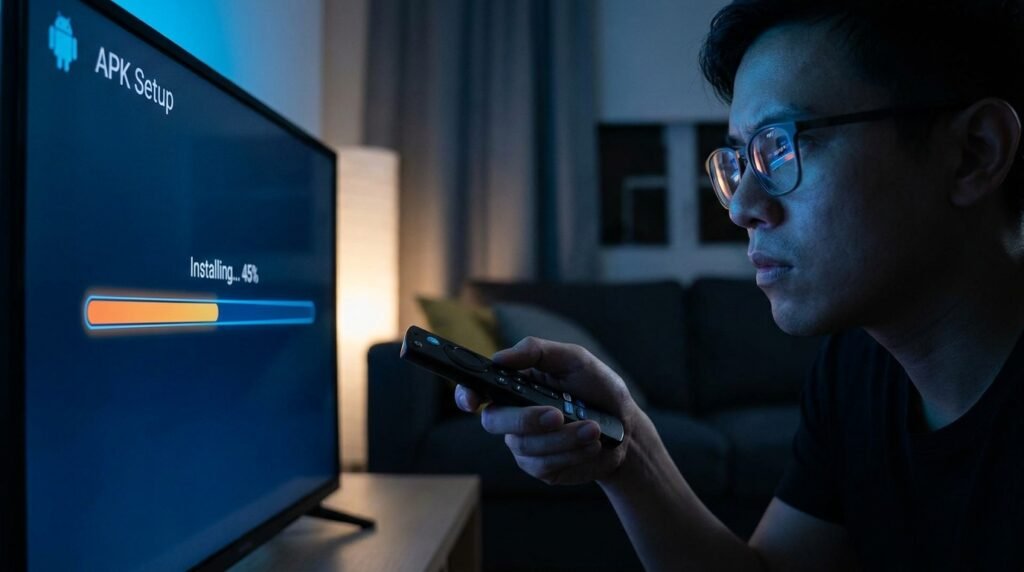
Because Amazon’s walled garden doesn’t always carry the latest build, most users access the TiviMate apk through sideloading. Don’t let the word intimidate you — the process takes about four minutes and requires zero technical knowledge.
Step 1 — Enable Unknown Sources Head to Settings → My Fire TV → Developer Options. Look for “Install Unknown Apps” and toggle it on for the Downloader application specifically. This is a per-app permission, not a blanket unlock.
Step 2 — Enter the Download Code Open the Downloader app and type the code 272483 into the URL bar. This points directly to the official TiviMate APK download. Hit Go and wait for it to pull the file.
Step 3 — Install and Clean Up Once the TiviMate apk finishes downloading, tap Install and let it run. When it completes, delete the installation file immediately. Firestick storage is notoriously limited, and keeping installer files is just wasted space.
Getting It on Android TV Boxes and Nvidia Shield
On pure Android TV devices, you have an easier path: search “TiviMate” directly in the Google Play Store. The official listing is maintained and updates automatically. No sideloading required.

TiviMate Premium — Is It Worth It?
Short answer: yes, and it’s not particularly close.
The free version of the TiviMate IPTV player allows exactly one playlist, no recording, no multi-view, and almost zero customization. It’s useful for testing whether the app works with your setup, nothing more.
TiviMate Premium unlocks the full picture:
- Unlimited playlists (useful if you run multiple services or test providers)
- Scheduled and series DVR recording
- Multi-screen viewing (up to nine simultaneous channels)
- Full UI customization — themes, colors, channel name editing, group creation
- Catch-up TV support
- EPG management tools
What Does TiviMate Premium Cost?
As of 2026, a TiviMate Premium lifetime subscription runs approximately $33.99 and covers up to five devices under a single account. There’s no monthly fee, no renewal, no recurring charge. For a tool you’ll use every single day, that pricing is genuinely reasonable.
The Companion App
To activate TiviMate Premium, you need the TiviMate Companion app, available on the Google Play Store. Create an account there, purchase your subscription, and then log into that same account inside the main TiviMate app on your streaming device. The Companion app is also where you manage which five devices are linked to your account — you can name them, remove old ones, and add replacements at any time.
One important caveat for iOS users: Apple’s ecosystem doesn’t support the Google Play Store, so iPhone or iPad users who want to purchase TiviMate Premium need to use an Android device or install an Android emulator like BlueStacks on a Windows PC to complete the purchase.
Connecting Your IPTV Subscription
The Three Connection Methods
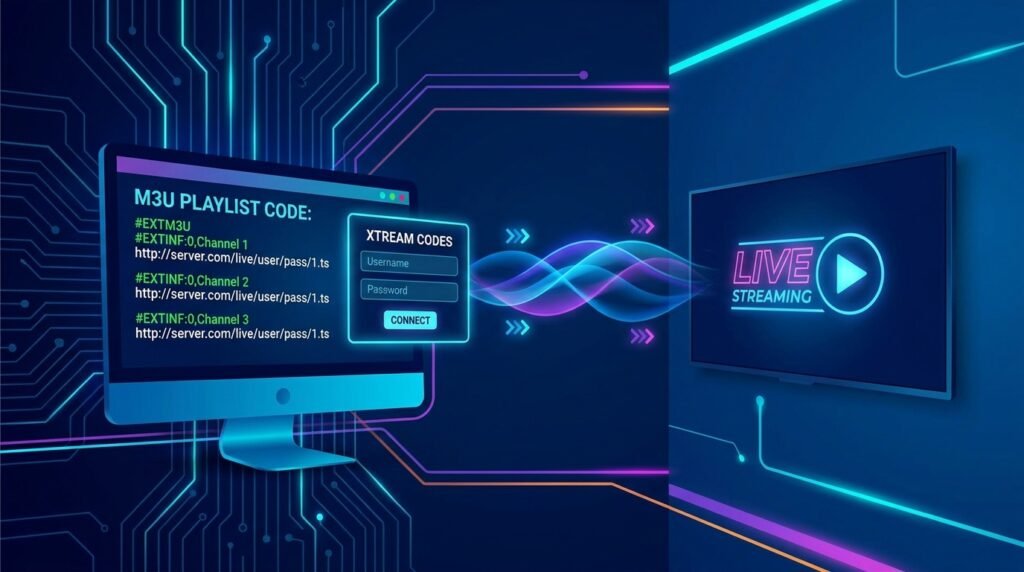
Once you’ve activated TiviMate Premium, go to Settings → Playlists → Add Playlist. You’ll see three options:
M3U URL — The simplest method. Your provider gives you a single link that contains your entire channel list. Paste it in, name the playlist, and TiviMate does the rest. The downside is that M3U links sometimes don’t display subscription expiry information.
Xtream Codes API — The preferred method for most users. You’ll need your provider’s server URL, your username, and your password. The advantage here is transparency: TiviMate will often pull and display your IPTV subscription expiry date and how many simultaneous connections your account allows. If you’re ever unsure whether your subscription is still active, this is the connection method that shows you instantly.
Stalker Portal — Used by providers who operate IPTV middleware. Requires a MAC address and portal URL. Less common than the other two but fully supported.
EPG Setup and Optimization
The Electronic Program Guide transforms a list of channels into something that actually feels like television. Most providers bundle an EPG URL with your subscription, and TiviMate will import it automatically during setup. But gaps happen — channels with “No Information” listed can be frustrating.
Here’s how to fill them:
- External EPG Sources: Services like EPG Share or Bevy publish regularly-updated guide data in XMLTV format. Add their URL as a secondary EPG source in TiviMate’s settings.
- Manual Mapping: Long-press the OK/Select button on any channel and choose “Assign EPG.” You can search for that channel by name and manually link it to a guide source.
- Update Frequency: Set your EPG to refresh every 24 hours. More frequent updates don’t meaningfully improve accuracy and can slow down lower-powered devices.
DVR Recording and SMB Network Setup
This is where TiviMate Premium really separates itself from every other IPTV player on the market. The DVR features are legitimate, functional, and — when set up correctly — genuinely impressive.
The Storage Problem (And Its Solution)
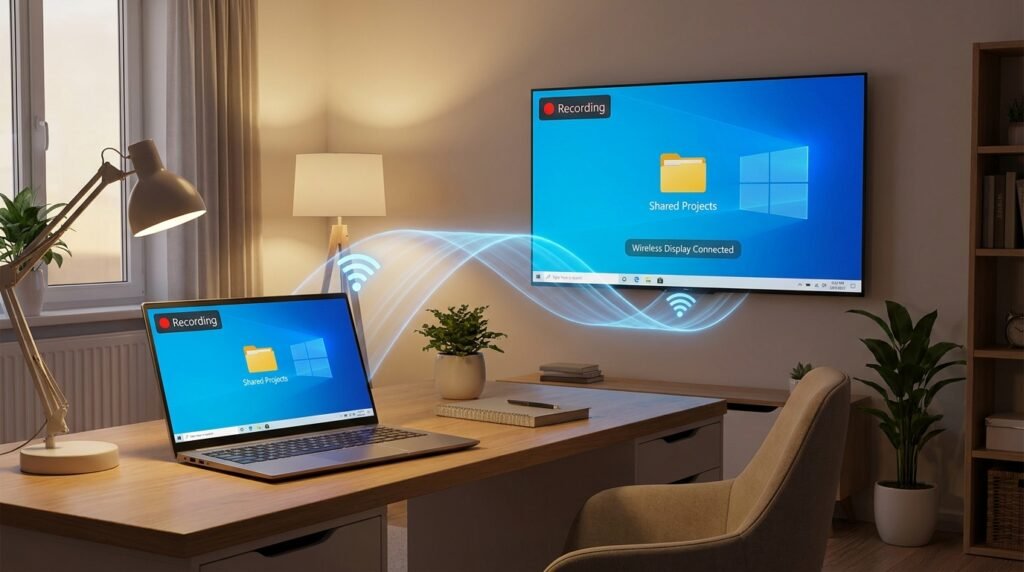
Here’s the honest reality: recording directly to a Firestick’s internal storage almost never works well. The 8GB (or even 16GB) internal storage fills up within a few hours of recording HD content, and the device’s thermal management can interrupt writes during long recordings. The solution is SMB — Server Message Block — which lets TiviMate write recordings wirelessly to a folder on your home network.
Setting Up SMB on Windows
- Create a dedicated folder on your Windows PC (e.g.,
C:\TiviMate_Recordings) - Right-click the folder → Properties → Sharing → Advanced Sharing
- Check “Share this folder” and click Permissions
- Set “Everyone” to allow Read and Change (Read/Write)
- In Windows Settings, go to Network & Internet → your connection → set the network profile to Private
- Enable Network Discovery and File Sharing under Advanced Sharing Settings
Connecting TiviMate to Your SMB Share
In the TiviMate IPTV player, go to Settings → Other → Recording → Setup SMB. Enter your PC’s local IP address (find it by typing ipconfig in Command Prompt and looking for your IPv4 address), your Windows username, and your Windows password. Select the shared folder. Done.
Once connected, you can schedule individual recordings, set up series recordings that automatically capture every episode of a show, and browse your recordings library from within TiviMate’s interface.

Eliminating Buffering and Boosting Performance
Buffering is the universal enemy of IPTV viewers. Some of it is a provider-side issue, but a significant portion is controllable from within TiviMate itself.
Buffer Size Settings
Navigate to Settings → Playback → Buffer Size. The default setting is typically “Small.” Increasing this to “Medium” or “Large” instructs TiviMate to preload more video data before playback begins. This creates a buffer reservoir that absorbs momentary drops in your internet connection without causing the stream to pause.
Switching to HLS Output
In the same Playback menu, look for Output Format and switch it from MPEG-TS to HLS (HTTP Live Streaming). MPEG-TS sends a fixed-quality stream regardless of your connection speed — when your bandwidth dips, the stream stops. HLS uses adaptive bitrate streaming, meaning it automatically drops quality slightly during a speed dip rather than stopping completely. For most viewers, a brief drop from 1080p to 720p is invisible; a five-second freeze is not.
VPN Integration
If you notice buffering that appears at specific times of day (evenings, weekends), your ISP may be throttling your connection when it detects sustained high-bandwidth usage. This is increasingly common, and a VPN is the cleanest fix. Services like Surfshark mask your traffic type from your provider, preventing throttling.
A VPN also resolves Error 458 (Region Blocked) — an error you’ll encounter when either your ISP or your IPTV provider is blocking access based on your IP’s geographic location.
Sports fans who rely on their IPTV subscription for live matches should pay particular attention here. If you’re trying to watch Premier League on IPTV in the UK or catch IPTV for Sports World Cup coverage and hitting geo-blocks, a VPN switching your apparent location is often the most immediate solution.
User-Agent Masking
Some IPTV providers actively block traffic originating from TiviMate. In Settings → Playback → User-Agent, you can change TiviMate’s identifier to “IPTVSmarters” or “VLC.” This masks the app’s identity at the request level and can resolve playback issues with providers who have implemented app-specific restrictions.
Customization, Multi-View, and Navigation
Cleaning Up Your Channel List
If you’ve ever imported a large playlist, you’ll know it arrives with provider tags baked into channel names: “US | ESPN HD,” “UK | BBC One FHD,” that kind of thing. It’s visually noisy. The Channel Names Editor (Settings → Channel Names Editor) lets you strip prefixes and suffixes in bulk.
For sports fans specifically, this is worth the ten minutes it takes. Browsing a clean list of “ESPN,” “Sky Sports Main Event,” and “beIN Sports” is a meaningfully better experience than scrolling through a wall of country codes and quality tags. Speaking of which — if you’re hunting for the Best IPTV UK providers that serve sport content cleanly, a tidy channel list inside TiviMate makes comparison between services considerably easier.
Creating Custom Groups
TiviMate Premium lets you build your own channel groups from scratch. Go to Settings → Groups → Add Group. Name it whatever you like — “My Sports,” “Kids’ Shows,” “News,” — and then manually add channels from across multiple playlists into that group. This is particularly powerful if you run more than one IPTV subscription simultaneously, as it lets you cherry-pick the best channels from each service into a single unified category.
Multi-View
Multi-View lets you watch up to nine channels at once in a grid layout. It’s legitimately useful for sports days when multiple matches are running simultaneously — you can keep an eye on four or five games without constantly switching channels. Bear in mind that each stream counts as a separate connection against your provider’s limit, so check what your IPTV subscription allows before enabling it.
Catch-Up TV
If your provider supports it, a clock icon appears on supported channels in the EPG. Clicking it lets you scrub back through the previous 24 to 72 hours of programming and watch anything you missed. Coverage and depth varies significantly between providers — it’s one of the features worth checking when evaluating the best IPTV providers for your setup.
Safety, Legality, and Scam Avoidance
Is TiviMate Legal?
The TiviMate IPTV player itself is completely legal. It’s a playback application, not a content distributor. It’s listed on the Google Play Store, it holds no content licenses because it doesn’t need any, and using it carries no legal risk.
The content legality question sits entirely with your provider. Licensed IPTV services — those with agreements to distribute the channels they carry — are legal. Services operating without those licenses are not. That’s a provider question, not a TiviMate question.
The TiviMate Premium APK Scam Problem
Let’s address this plainly: any website offering a free TiviMate premium apk download is offering you something that ranges from useless to actively harmful.
The free TiviMate premium apk mods circulating online tend to fall into one of three categories:
- Cracked apps that can’t update — These are frozen at an older version. As providers and the app evolve, an outdated TiviMate premium apk will increasingly malfunction, miss new features, and eventually stop working entirely.
- Cloned apps with tracking or malware — Some TiviMate premium apk downloads on shady sites contain modified code designed to harvest device data or serve aggressive advertising. The risk isn’t theoretical.
- Bait-and-switch downloads — Files that present as a TiviMate premium apk and install something else entirely.
The official lifetime TiviMate Premium subscription is $33.99. It covers five devices, never expires, and keeps the app fully updated. The math on that versus the risk of a free TiviMate premium apk from an unknown source is not difficult.
Common Error Codes and What They Mean
- Error 401 (Unauthorized): Your credentials are wrong or your subscription has expired. Check with your provider.
- Error 403 (Forbidden): Access temporarily denied — usually a server-side issue. Wait a few minutes and try refreshing your playlist.
- Error 458 (Region Blocked): Your IP address is being blocked based on location. Enable a VPN and switch to a compatible server location.
Routine Maintenance
Keep the TiviMate apk running cleanly with these periodic steps:
- Clear Logo Cache: Channel logos pile up over time. Clearing the logo cache prevents the app from becoming bloated.
- Clear EPG Data: Old guide data accumulates. Regular clearing keeps storage consumption manageable.
- Check for Updates: The official TiviMate apk updates regularly. If you installed via the Play Store, updates are automatic. If you sideloaded, check the official site periodically for newer builds.
Final Thoughts
There’s a reason the TiviMate IPTV player has held its position at the top of the Android TV streaming app ecosystem for years running. It’s not flashy for its own sake — it’s genuinely thoughtful. The EPG works. The DVR works. The multi-view works. The customization is deep without being overwhelming. And the one-time TiviMate Premium pricing model respects users in a market where subscription fatigue is real.
If you’re setting up for the first time, follow the installation steps above, activate TiviMate Premium through the official Companion app, connect your IPTV subscription using Xtream Codes if your provider supports it, and spend twenty minutes configuring your EPG and groups. That upfront investment pays back every time you sit down to watch.
For sports-focused viewers, pair a well-configured TiviMate IPTV player setup with a reliable provider and a solid VPN — whether you’re watching domestic leagues, international tournaments, or coverage from the Best IPTV UK services — and you’ll have a viewing setup that competes with anything cable ever offered, at a fraction of the cost.
The TiviMate IPTV player doesn’t just make IPTV usable. It makes it genuinely good.