
If you have spent any time trying to cut the cord and move away from traditional cable, you have almost certainly come across the term IPTV Smarters Player. It comes up in every streaming forum, Reddit thread, and tech blog for good reason — it genuinely is one of the most capable and user-friendly media player apps available today. But like anything in the streaming world, getting it to work flawlessly requires a bit of know-how.
This guide is built for 2026. Whether you are brand new to internet-based television or you have been streaming for years and want to squeeze more performance out of your setup, you will find something useful here. We will walk through what the IPTV Smarters Player actually is, how to install it on every major device, how to configure it correctly, and how to solve the most common problems that users run into.
Table of Contents
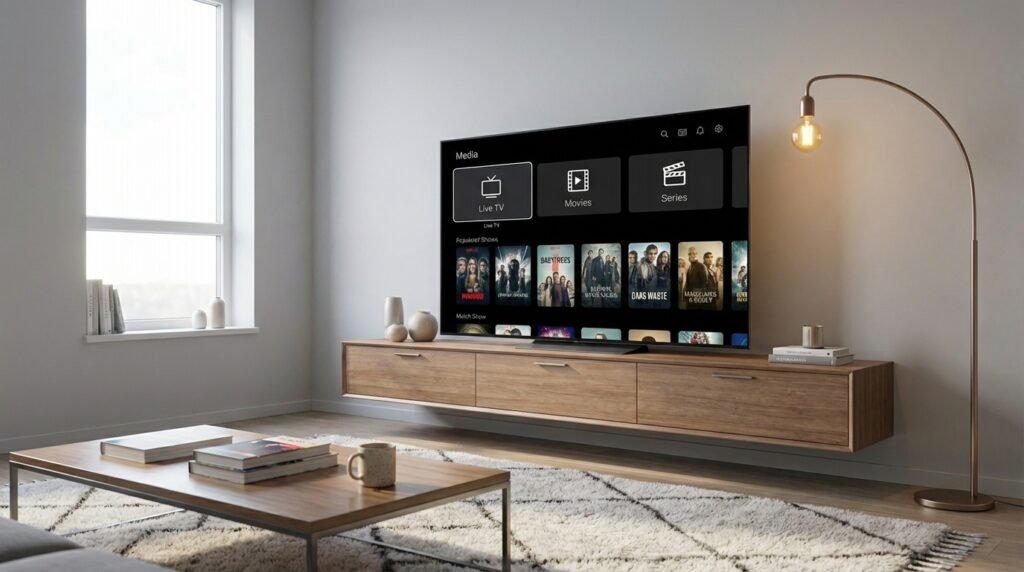
What Is IPTV Smarters Player — And What It Is Not
The IPTV Smarters Player is a media player application — nothing more, nothing less. Think of it the way you would think of VLC or Windows Media Player. It is software that reads and organises media content. It does not produce any content on its own.
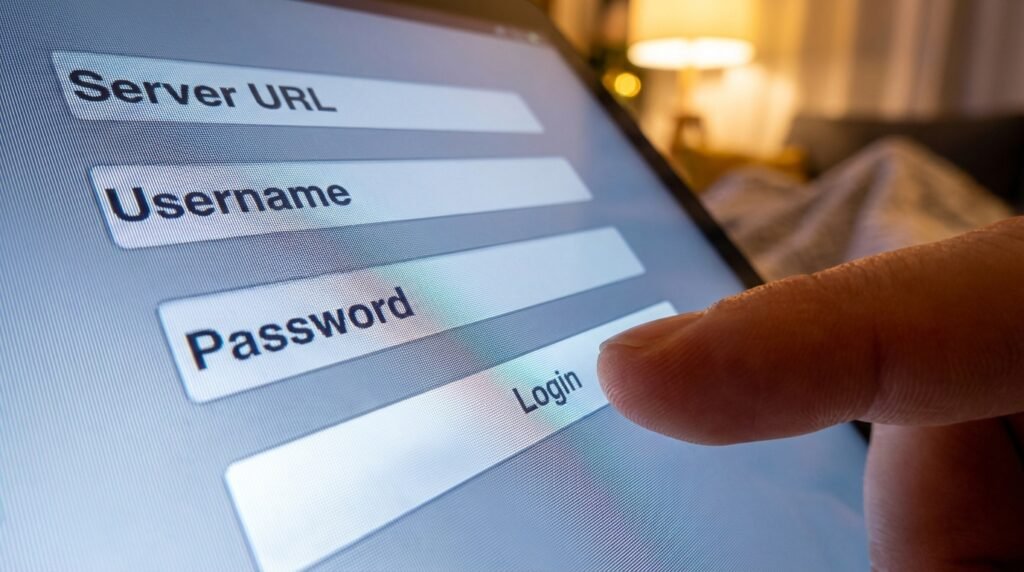
What makes the IPTV Smarters Player different from a standard media player is how it is designed. It is purpose-built to read and display IPTV streams — live television channels, video-on-demand libraries, and catch-up content — that come from an external provider. You supply either an M3U playlist URL or a set of Xtream Codes credentials (a server address, a username, and a password), and the app does the rest.
To use the IPTV Smarters Player effectively, you need two things in place beforehand: an iptv subscription from a legitimate provider, and a compatible device with a stable internet connection. For a breakdown of the best services currently available, the best IPTV providers guide is a great place to start.
What You Need Before You Begin
1. An active IPTV subscription. Your provider will supply you with either Xtream Codes credentials or an M3U URL. If you are not sure which best IPTV UK service to go with, read comparison reviews before committing to a plan.
2. A compatible device. The IPTV Smarters Player runs on Android phones and tablets, Android TV boxes, iPhone, iPad, Apple TV, Amazon Fire Stick, Samsung Smart TVs, LG Smart TVs, Windows PCs, and macOS computers.
3. A fast enough internet connection. Standard HD streaming requires at least 20 Mbps. If you want 4K streams without any interruptions, aim for 50 Mbps or higher.
Device-by-Device Installation Guide
Setting Up IPTV Smarters Player on Android
Android is the most straightforward platform for this. Open the Google Play Store, search for “Smarters Pro,” and install it. Once installed, tap “Add New User” and select “Login with Xtream Codes API.” Enter your server URL, username, and password, and the IPTV Smarters Player will automatically load all your channels and VOD content.
If your provider gave you an M3U link instead, choose “Load Your Playlist / M3U URL” from the same menu and paste the link in.
Installing IPTV Smarters Player on iPhone and iPad
Apple’s App Store lists the app as “Smarters Player Lite” on iOS and tvOS devices. Despite the different name, it functions identically to the standard IPTV Smarters Player. Download it, open it, and log in using your Xtream Codes credentials.
Sideloading IPTV Smarters Player on Amazon Fire Stick
This is where most people run into difficulty, because the Amazon App Store does not carry the IPTV Smarters Player natively. For a detailed walkthrough, refer to the setup IPTV on Firestick guide. Here is the quick summary:
- Go to Settings → My Fire TV → Developer Options and enable “Apps from Unknown Sources”
- Install the Downloader app from the Amazon App Store
- Open Downloader and enter one of these codes to fetch the APK: 224877, 78522, or 6468112
- Install the APK, open the IPTV Smarters Player, and enter your credentials
IPTV Smarters Player on Samsung and LG Smart TVs
Both Samsung (Tizen OS) and LG (webOS) have the IPTV Smarters Player available in their native app stores. Search “IPTV Smarters Pro” and install directly. If the app is unavailable due to regional restrictions, plug a Fire Stick into an HDMI port and run the IPTV Smarters Player through that instead.
IPTV Smarters Player on Windows and macOS
For desktop users, the IPTV Smarters Player is available as a downloadable application from the official developer website at iptvsmarters.com. The desktop version includes all the same features as the mobile versions.
Xtream Codes vs M3U: Which Login Method Should You Use?
Xtream Codes API is the superior option in almost every situation. It connects using a server URL, a username, and a password, and it automatically loads your full channel list, movie and series library, and EPG schedule. Everything syncs in one step. If your provider supports it — and most do — always choose this method within the IPTV Smarters Player.
M3U Playlist URL works perfectly well but requires more manual setup. You paste a long URL containing your channel data, and the IPTV Smarters Player loads it. The catch is that M3U files do not usually include EPG data, so you will need to find a separate EPG URL from your provider and enter it manually in the app settings.
IPTV Smarters Pro vs IPTV Smarters Lite: Which Version Do You Need?
IPTV Smarters Lite is the free version. It covers the essentials — live TV, VOD, and catch-up — and works well for a single user with straightforward needs.
IPTV Smarters Pro is the paid version and the one most people end up sticking with long-term. It adds multi-account support, parental controls, and multi-screen viewing. For more detail on the Pro version’s full capabilities, read the dedicated IPTV Smarters Pro article.
Additionally, the Pro version of the IPTV Smarters Player integrates with external players like VLC and MX Player. This is useful if you run into codec or format issues — redirecting playback to VLC often resolves them immediately.
Advanced Features Worth Knowing About
Electronic Program Guide (EPG). A full schedule of what is on across all your channels, displayed in a traditional TV guide format. You can see what is playing now and what is coming up over the next several days.
Video On Demand. Most IPTV subscriptions include a VOD library containing thousands of films and TV series. The IPTV Smarters Player organises these into searchable, browsable categories.
Catch-Up TV. If your provider supports catch-up, you can go back and watch programmes that aired in the past few days directly through the IPTV Smarters Player. This is hugely useful for sports events you missed.
Parental Controls. You can set a PIN code that locks access to specific categories or individual channels within the IPTV Smarters Player settings.
Multi-Screen Viewing. With the Pro version, you can split your screen and monitor several channels at once. Sports fans who want to follow multiple fixtures simultaneously will find this feature invaluable. If you are in the UK and interested in live football, the guide on how to watch Premier League on IPTV UK covers everything you need to set that up.
Using a VPN With IPTV Smarters Player
Security is something worth taking seriously when you stream online, and a VPN pairs very well with the IPTV Smarters Player for several practical reasons.
The most immediately useful benefit is preventing ISP throttling. Internet service providers often detect high-bandwidth streaming activity and deliberately slow down those connections. A VPN encrypts your traffic so your ISP cannot identify what you are doing with the IPTV Smarters Player, leading to smoother, more consistent playback.
Beyond throttling, a VPN protects your IP address and secures your connection on public Wi-Fi networks. NordVPN and Surfshark are consistently recommended for streaming use due to their speed and server coverage.
Troubleshooting Common IPTV Smarters Player Issues
Login failed error. Almost always a credential problem. Double-check capitalisation — credentials are case-sensitive. A single extra space is enough to cause a login failure. Copy and paste from your provider’s welcome email rather than typing manually.
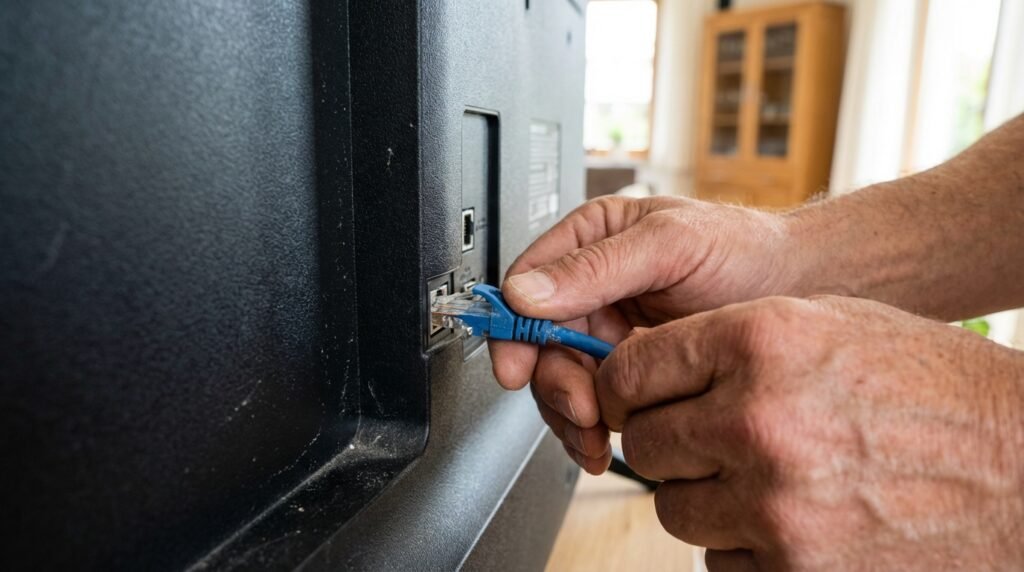
Buffering or freezing. Run a speed test first. If your connection is below 20 Mbps, that is likely the cause. Clearing the IPTV Smarters Player app cache (found under device settings in the app management section) can also help, as can restarting your router.
App crashing. Most common on low-memory devices like older Fire Stick models. Close background apps before launching the IPTV Smarters Player, and try clearing the app’s cached data.
EPG not loading. Go into your profile settings within the IPTV Smarters Player and use the “Refresh EPG” option. With M3U connections, confirm you have a separate EPG URL configured in the app settings.
Missing channels. Pull down on the channel list to refresh, or go into settings and re-fetch your playlist. If whole categories are missing, confirm your subscription tier with your provider.
Fraud Awareness and Staying Safe
Fake websites that imitate the official IPTV Smarters domain exist and attempt to sell subscription packages. The actual developers of the IPTV Smarters Player do not sell content, channels, or subscriptions. They produce the player software only.
Always download the IPTV Smarters Player from iptvsmarters.com, the Google Play Store, the Apple App Store, the Samsung App Store, or the LG Content Store. Be sceptical of any third-party site offering an “official” download bundled with a channel subscription.
Frequently Asked Questions
Is the IPTV Smarters Player free to download? Yes. The Lite version is free. The Pro version requires a payment but is very reasonably priced given the features it adds.
Does the IPTV Smarters Player work on Samsung Smart TV? Yes, it is available directly in the Samsung App Store for Tizen OS models.
Why is my IPTV Smarters Player buffering constantly? Usually an internet speed issue (you need at least 20 Mbps for HD) or a server-side problem with your provider.
Can I use the IPTV Smarters Player on multiple devices simultaneously? The app supports multiple devices, but simultaneous streaming depends on your subscription plan.
Is using the IPTV Smarters Player legal? The application itself is completely legal software. The legality of the content depends on your provider’s licensing agreements.
Final Thoughts
The IPTV Smarters Player has held its position as the most widely used IPTV client for good reasons. It is reliable, it supports every major device, it handles both Xtream Codes and M3U formats cleanly, and the Pro version adds genuine quality-of-life features that make it worth the modest cost. When paired with a quality iptv subscription and used on a solid internet connection, it delivers a streaming experience that genuinely competes with — and in many ways surpasses — traditional broadcast television.
Whether you are just getting started or troubleshooting a persistent issue, the steps in this guide should get you to a smooth, reliable setup. Take the time to configure your EPG correctly, consider using a VPN for better performance and privacy, and work through the troubleshooting checklist if something goes wrong. The IPTV Smarters Player ecosystem is mature enough that almost every problem has a well-documented solution.