
If you’ve spent any time searching for a reliable IPTV player for your smart TV, chances are you’ve come across SMARTONE IPTV — and for good reason. This isn’t just another media app thrown together by a weekend developer. SMARTONE IPTV is a world-class multimedia player built from the ground up for smart televisions, engineered with precision, and trusted by viewers across the globe who demand a stable, feature-rich streaming experience.
But here’s where a lot of first-time users get confused: SMARTONE IPTV is a player, not a service provider. The developers behind this application do not sell channels, subscriptions, or streaming content of any kind. What they have built is an exceptionally polished interface that connects to content you bring to the table — whether that’s an M3U playlist or Xtream Code API credentials from your chosen provider. Think of it like a premium media remote control. You own the remote, but you still need a signal coming into the house.
This guide will walk you through everything — from understanding the platform’s core strengths, to installing it on LG, Samsung Tizen, and legacy Samsung Orsay TVs, to activating your license and loading your first playlist. Let’s get into it.
Table of Contents
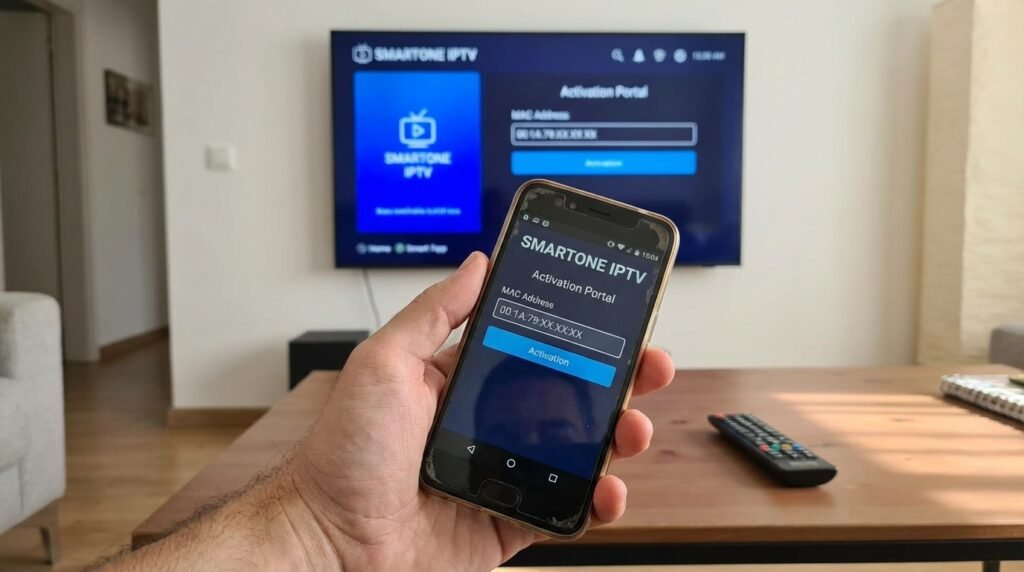
What Makes SMARTONE IPTV Stand Out?
Before we dive into the technical steps, it’s worth taking a moment to understand why so many people choose SMARTONE IPTV over competing players.
First, there’s the multi-device management system. When you register an account, you get centralized control over multiple televisions from a single dashboard. For families with TVs in different rooms, or even across different households, this is a massive convenience. You can manage playlists, update content links, and monitor device activity without ever having to pick up a remote.
Then there’s the fast zapping feature — something that sounds minor until you’ve experienced the frustrating half-second lag on lesser apps every time you flip between channels. SMARTONE IPTV keeps channel switching smooth and nearly instantaneous, which makes a real difference when you’re flipping through live sports or news.
The advanced video player inside the app gives you the full suite of playback controls: play, pause, resume, fast-forward, and rewind. This works not just for live TV, but also for Video on Demand content and series libraries. Speaking of which, SMARTONE IPTV handles Live TV, VOD, and series all within the same interface, keeping your entire entertainment world in one place.
There’s also a favorites list function, which lets you pin your most-watched channels and movies for one-click access. Combined with the TV archives and timeshift system, you can catch up on shows you missed without having to dig through complicated menus.
For households with children, the built-in parental lock system gives parents genuine peace of mind, letting them restrict access to channels or content categories that aren’t appropriate for young viewers.
And for a global audience, multi-language support means the interface can be navigated comfortably by users in dozens of countries, which goes a long way toward explaining why SMARTONE IPTV has built such a loyal international user base.
If you’re currently exploring other player options, it’s worth checking out our detailed review of IPTV Smarters Pro, another popular choice among streaming enthusiasts, to compare features side by side before you commit.
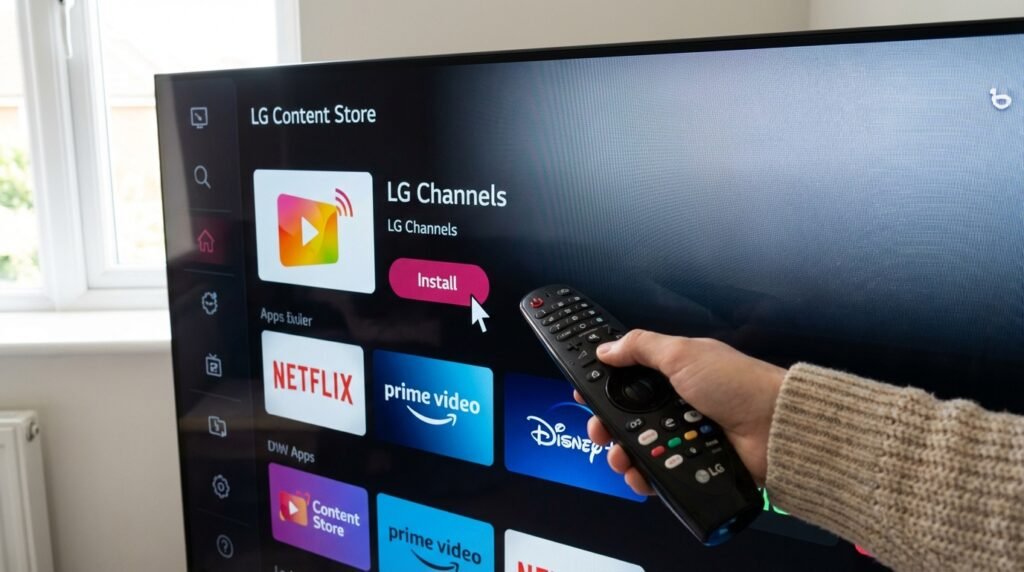
Installing SMARTONE IPTV on LG WebOS Smart TVs
LG users are arguably the easiest group to get started with SMARTONE IPTV, thanks to the app’s availability directly inside the LG Content Store. The compatibility range here is genuinely impressive — from the early webOS 1.0 releases all the way through to 2026’s latest webOS 25 models.
Here’s how to get it done:
- Open the LG Content Store from your TV’s home screen.
- Use the search function to look up SMARTONE IPTV.
- Select the app from the results and click Install.
- Once the download completes, navigate to your APPS HOME screen.
- Scroll through your installed applications, find SMARTONE IPTV, and launch it.
That’s genuinely all it takes on most modern LG sets. The app installs cleanly, loads quickly, and gets you to the setup screen without any fuss.
LG model compatibility at a glance:
- 2022–2026 models: webOS 22, 23, 24, 25, and 26
- 2017–2021 models: webOS 3.5, 4.0, 4.5, 5.0, and 6.0
- 2014–2016 models: webOS 1.0, 2.0, and 3.0 (Simple Smart)
If you’re running a model from 2014 and it still works fine — congratulations, you’re getting more mileage out of that TV than most people would expect, and SMARTONE IPTV is happy to accommodate you.
One thing to note for LG webOS users specifically: in some models, SMARTONE IPTV uses a Device ID rather than a traditional MAC address. This is because certain LG firmware versions don’t expose direct MAC address access to third-party apps. In this case, SMARTONE IPTV assigns you a unique MAC equivalent upon first launch, and it stays consistent regardless of whether you’re connected via Wi-Fi or ethernet. More on that in the troubleshooting section.
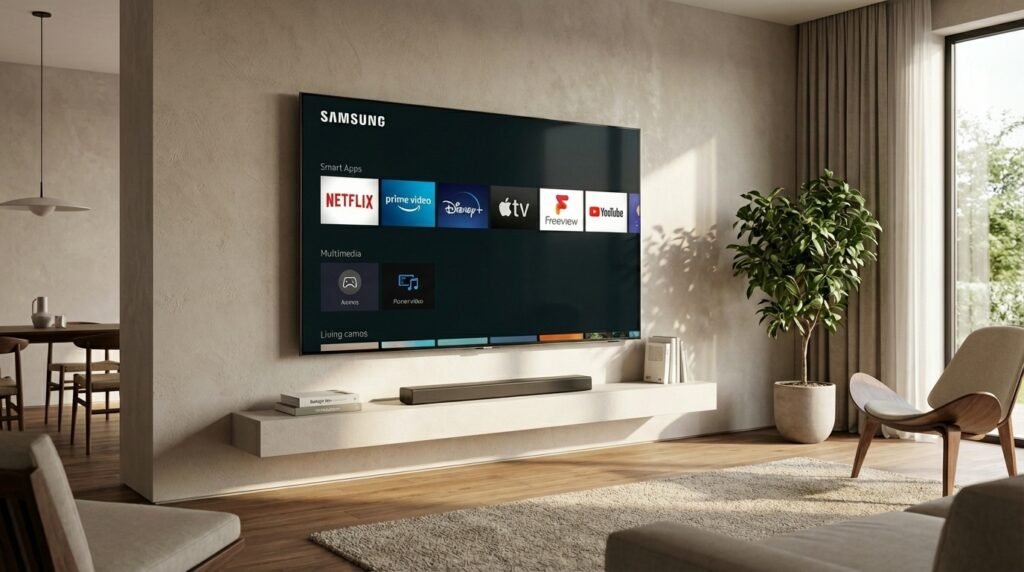
Installing SMARTONE IPTV on Samsung Tizen TVs (2016–2026)
Samsung’s Tizen platform covers the majority of Samsung smart TVs sold over the last decade, and SMARTONE IPTV has excellent support for this ecosystem.
For TVs from the K, M, N, Q, R, and T series (roughly 2016 through 2021), the process is straightforward:
- Open the Samsung Smart Hub and navigate to the Samsung App Store.
- Search for SMARTONE IPTV and select it from the results.
- Click Install and wait for the download to finish.
- Head to APPS HOME, find SMARTONE IPTV in your installed apps, and launch it.
For 2022–2026 Tizen models (including the Tizen 6.5, 7.0, 8.0, and 9.0 lineups), the same Samsung Store method applies. Whether you’re running a QN900D, S95D, S90F, or QN90F, SMARTONE IPTV has been tested and verified for compatibility.
What about the 2015 “J” Series?
The 2015 J series is the one exception that requires a slightly different approach. These TVs support Tizen but may not always surface the app cleanly through the store. For these devices, a USB installation is your most reliable option:
- Download the smartone_tizen.zip archive from the official SMARTONE IPTV website.
- Extract the contents directly to the root folder of a FAT32-formatted USB drive — not inside any subfolder.
- Insert the USB drive into your TV.
- Wait for the on-screen notification confirming a successful installation.
- The SMARTONE IPTV widget will then appear in your My Apps section.
The FAT32 format requirement is important here. NTFS drives are commonly used for large storage but won’t be recognized correctly for this purpose, so make sure you format the drive beforehand if needed.
If you also use an Amazon Fire TV stick in another room of your home, you might find our step-by-step guide on how to setup IPTV on Firestick useful — it covers the sideloading process in detail and pairs well with what you’ve got running on your Samsung.
Installing SMARTONE IPTV on Legacy Samsung Orsay TVs (2012–2015)
Here’s where things get a little more specialized. If you’re sitting on an older Samsung TV from the Orsay era — we’re talking E, ES, F, H, HU, J4, or J5 series — you might assume you’re out of luck. You’re not. SMARTONE IPTV has gone out of its way to support these legacy devices, which is a genuinely rare commitment from an app developer in 2026.
You have two methods available.
Method 1: Developer Mode Sync
This is the more popular option and works well for most Orsay devices:
- Access your TV’s Developer Mode from the settings menu.
- Enter one of the following Sync server IP addresses:
- 5.78.42.49
- 49.12.205.228
- Select “Start User Application Synchronization.”
- The process will run for a short time, and when it completes, the SMARTONE IPTV application will appear on your SmartHub screen, ready to launch.
Method 2: USB Installation
If Developer Mode gives you trouble, the USB method is your fallback:
- Download the smartone_orsay.zip file from the official site.
- Extract the entire contents to the root directory of a FAT32 USB drive.
- Insert the drive into your TV.
- Wait for SMARTONE IPTV to appear in the Samsung Apps section.
Supported legacy Orsay models include:
- 2014 “H” lineup: UH6203, UH5500, and similar
- 2013 “F” lineup: UF7000, UF8000, and similar
- 2012 “E” lineup: UE7000, UE5500, and similar
This level of backward compatibility is one of the reasons SMARTONE IPTV has built the reputation it has. Most app developers abandon older hardware the moment a newer OS cycle comes along. SMARTONE IPTV hasn’t done that.
The Trial Period and Licensing — What You Need to Know
Before you hand over any payment details, SMARTONE IPTV gives you a full 15-day trial period. This is genuinely useful time — enough to run the app through its paces across different content types, connection methods, and features. The developers are transparent about one important policy: payments are non-refundable, and the support team will not intervene in technical issues related to external content providers or playlists. This is why the trial exists — use it, and use it thoroughly.
Once you’ve confirmed the app works well on your device, you have two licensing options:
| License Type | Price |
|---|---|
| Annual License | €2.50 / year |
| Lifetime License | €12.99 one-time |
At those price points, the lifetime license is objectively the smarter purchase for anyone planning to use the app long-term. Two years of the annual plan already exceeds the lifetime cost.
To activate your license:
- Launch SMARTONE IPTV on your TV.
- Locate your MAC address displayed within the app (or your assigned Device ID if you’re on certain LG webOS models).
- Visit the official SMARTONE IPTV website.
- Enter your MAC address and complete the payment process.
Once paid, the player features are fully unlocked. Again — this does not include any channels. You are paying for the software. For content, you’ll need a separate iptv subscription from a provider of your choosing.
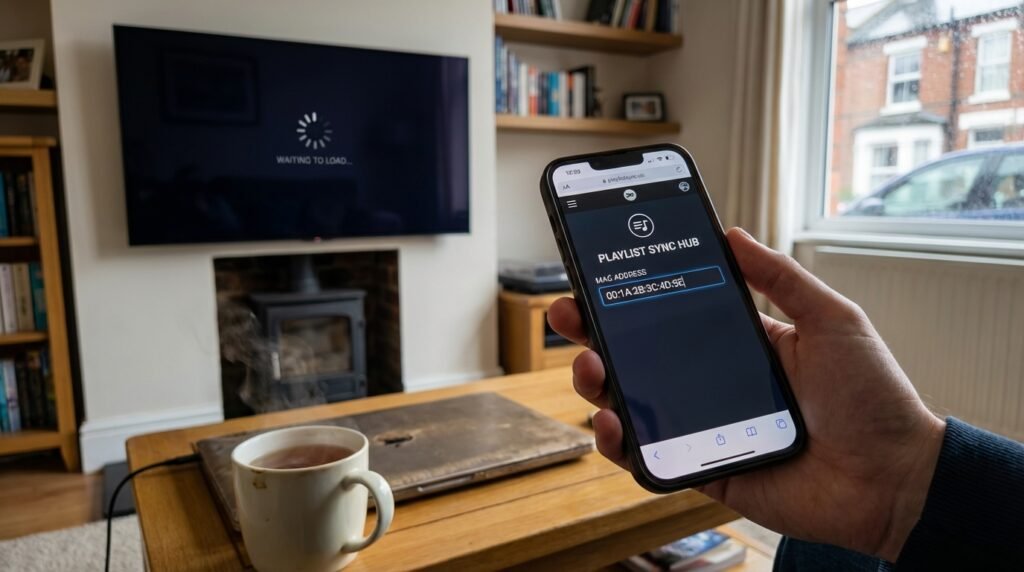
How to Load Your Playlist into SMARTONE IPTV
With the app installed and activated, the final step is connecting your content. Here’s the process:
- Go to https://smartone-iptv.com on any browser.
- Enter your TV’s MAC address in the designated input field.
- Give your playlist a name — anything works here; it’s just for your own reference.
- Paste in your M3U link or enter your Xtream Code API credentials (username, password, and server URL from your provider).
- Click “Add link.”
- Return to your TV and restart the SMARTONE IPTV app.
Your playlist will load automatically once the app refreshes, and you’ll be able to browse your live channels, VOD library, and series catalog from the main interface.
If you’re in the UK and looking to get the most out of a sports-focused playlist, our guide on how to watch Premier League on IPTV UK breaks down exactly which packages cover the full fixture list, including midweek games and cup competitions. It’s well worth a read before you commit to a provider. You might also want to browse our Best IPTV UK roundup, which covers the top-rated services currently available, including reliability scores and channel count comparisons.
Enabling EPG (Electronic Program Guide)
One of the features that separates a good IPTV experience from a great one is the Electronic Program Guide — essentially a built-in TV schedule that shows you what’s on now, what’s coming up, and what you may have missed.
To enable it in SMARTONE IPTV:
- Open the app and go to Settings from the Main Menu.
- Navigate to Setup, then select EPG Info.
- Choose Enable to activate automatic EPG loading.
Once enabled, the EPG data will load alongside your channel list and update regularly. This makes it much easier to browse content at a glance, particularly for live sports schedules and news programming.
Resetting the App When Something Goes Wrong
Apps misbehave. It happens. If SMARTONE IPTV starts running slowly, throwing errors, or behaving unexpectedly, the built-in reset function is usually the first thing to try before anything more drastic:
- Open SMARTONE IPTV and go to Settings > Setup.
- Select Reset App.
- From here, you can choose to reset specific components:
- Accounts list — clears your saved provider connections
- Live favorites — removes your pinned channels
- Reset all data — returns the app to factory state
The full reset will wipe your favorites, themes, language preferences, and saved accounts. After a full reset, you’ll need to re-enter your playlist details via the website. It sounds like a pain, but it usually resolves persistent performance issues in minutes.
MAC Address Changes — Why It Happens and What to Do
This is one of the most commonly raised questions in the SMARTONE IPTV community, and the answer is simpler than most people expect.
Most smart TVs have two separate MAC addresses: one for the Wi-Fi adapter and one for the wired Ethernet port. SMARTONE IPTV reads the MAC address of whichever connection is currently active. So if you switch from wireless to a cable connection (or vice versa), the MAC address the app reports will change — and your activation may appear to have disappeared.
The fix is simple: restart the app after switching connection types. This allows the app to recognize and register the second MAC address in the system.
For LG webOS TVs, as mentioned earlier, this isn’t an issue because the app assigns a unique Device ID on first launch that remains consistent regardless of how you connect. It’s a small but thoughtful design decision that saves a lot of unnecessary support headaches.
Final Thoughts
SMARTONE IPTV has quietly become one of the most capable and well-supported IPTV players available for smart TVs. Its combination of broad device compatibility — stretching back to 2012 Samsung models and forward through 2026’s flagship TVs — with a clean interface, solid feature set, and genuinely fair pricing makes it difficult to argue against.
The 15-day trial is your safety net. Use it to confirm compatibility, test your playlist, experiment with the EPG, and get a feel for the fast zapping and playback controls. If it works well for you in those two weeks — and in most cases it will — the lifetime license at €12.99 is a one-time cost that pays for itself almost immediately.
Just remember the golden rule: SMARTONE IPTV is the player, not the provider. You bring the content; it handles everything else with professionalism.
For further reading, explore our guides on IPTV Smarters Pro as an alternative player comparison, setup IPTV on Firestick if you’re working with Amazon devices, and our Best IPTV UK roundup for finding reliable content providers. Sports fans should also bookmark the how to watch Premier League on IPTV UK guide before the next fixture round kicks off.