Why Half of Britain Is Quietly Ditching Sky
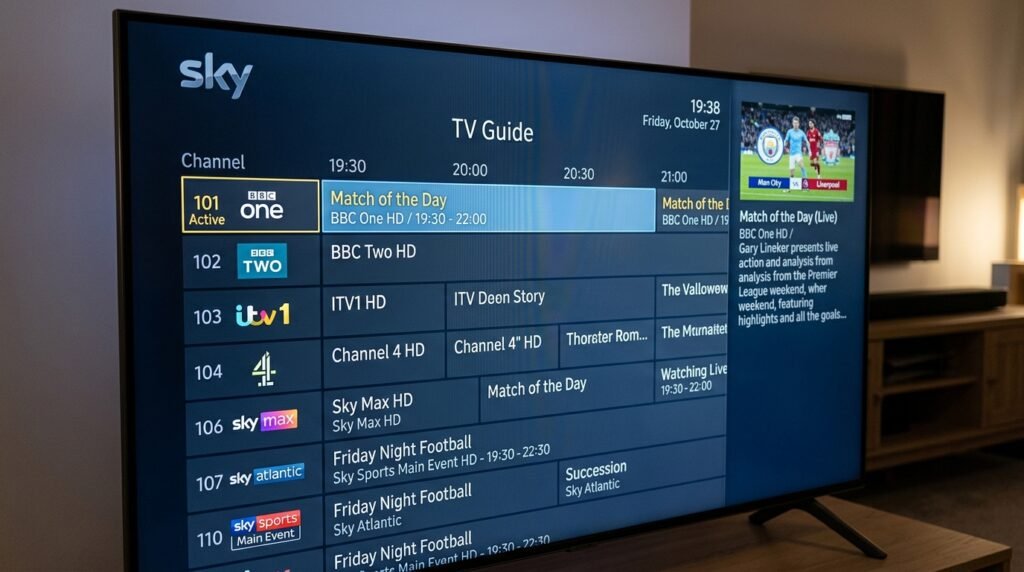
Let’s be honest — the cost of living in the UK has been absolutely brutal these past few years. Energy bills, council tax, food shopping — everything has gone up. So it’s little wonder that millions of British households are now looking very hard at that £70-odd monthly Sky bill and asking themselves a straightforward question: is there a better way?
There is. And it starts with getting IPTV on Firestick.
IPTV — Internet Protocol Television — delivers live TV channels, on-demand films, and sports coverage through your broadband connection rather than a satellite dish or cable contract. Pair it with Amazon’s Firestick, plug it into your telly, and you’ve got access to thousands of channels for a fraction of what Sky or BT charge. If you’ve been meaning to setup IPTV Firestick but didn’t know where to begin, this guide will walk you through every single step — no technical background required.
Why the Firestick 4K Max Is the #1 Choice for British Households
Not all Firesticks are created equal, and if you’re going to make the switch properly, it’s worth doing it right from the off.
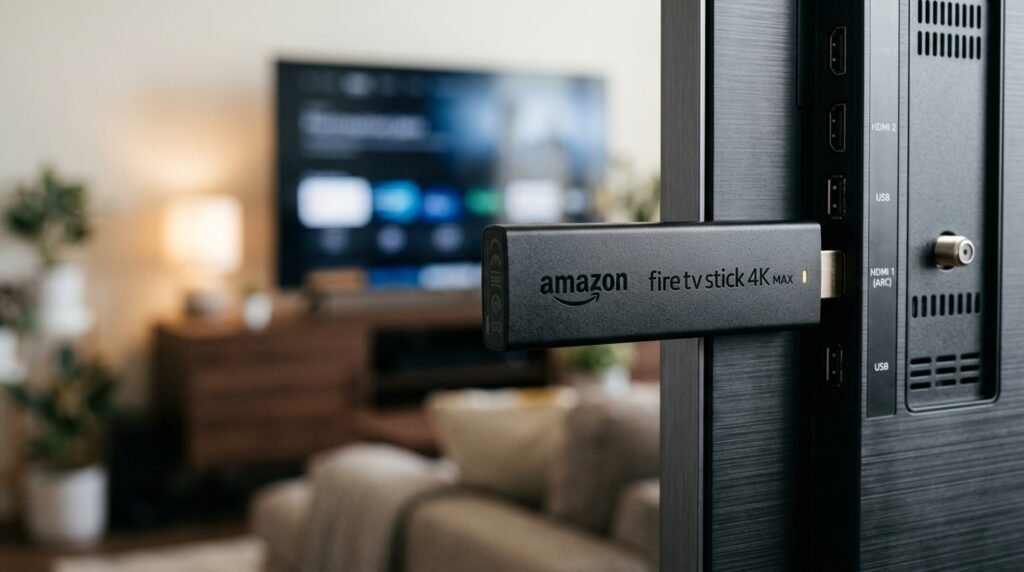
The Amazon Fire TV Stick 4K Max (2nd generation) is, without question, the device most recommended by UK cord-cutters right now — and for good reason. It runs on a faster processor than its predecessors, handles 4K HDR and Dolby Vision content without breaking a sweat, and — crucially for IPTV — it supports Wi-Fi 6, which means a far more stable streaming connection even in homes where half a dozen devices are fighting over the same router.
It typically retails around £69.99 on Amazon, though it drops regularly during Prime Day and Black Friday. For a one-off purchase that could save you hundreds of pounds per year on subscription television, it’s an absolute no-brainer.
The standard Firestick Lite will technically work, but you may find it struggles with heavier IPTV apps or buffers during peak times. Spend the extra tenner and get the 4K Max — your future self will thank you.
Before You Start: What You’ll Need
Getting set up is straightforward, but there are two things you genuinely cannot do without.
1. A Reliable UK Broadband Connection
IPTV lives and dies by your internet speed. For standard HD streaming, you’ll want a minimum of 25 Mbps. For 4K content or if there are multiple people using the internet simultaneously, aim for 50 Mbps or above. Most modern UK fibre broadband packages from the likes of BT, Sky, Virgin Media, or the growing number of full-fibre providers (Hyperoptic, Community Fibre, Toob) will handle this without issue.
One practical tip: wherever possible, connect your Firestick via ethernet rather than Wi-Fi. The 4K Max supports ethernet through an optional adapter (sold separately for around £14.99). A wired connection is noticeably more stable for live TV — particularly for sports, where buffering during a penalty shootout is roughly as welcome as a wasp at a barbecue.
2. An IPTVStreamy Subscription
For UK viewers, IPTVStreamy is the provider we’d point you towards first. It’s built with British audiences in mind — you get all the major UK channels (including regional variations), a comprehensive sports package, and an on-demand library that covers films and box sets. Plans are flexible, the picture quality is consistently strong, and their customer support is actually responsive, which isn’t something you can say about every IPTV provider operating in this space.
Once you’ve signed up, IPTVStreamy will provide you with your account credentials — a username, password, and a portal URL or M3U playlist link. Keep those to hand. You’ll need them shortly.
Step One: Enabling Developer Options and Apps from Unknown Sources
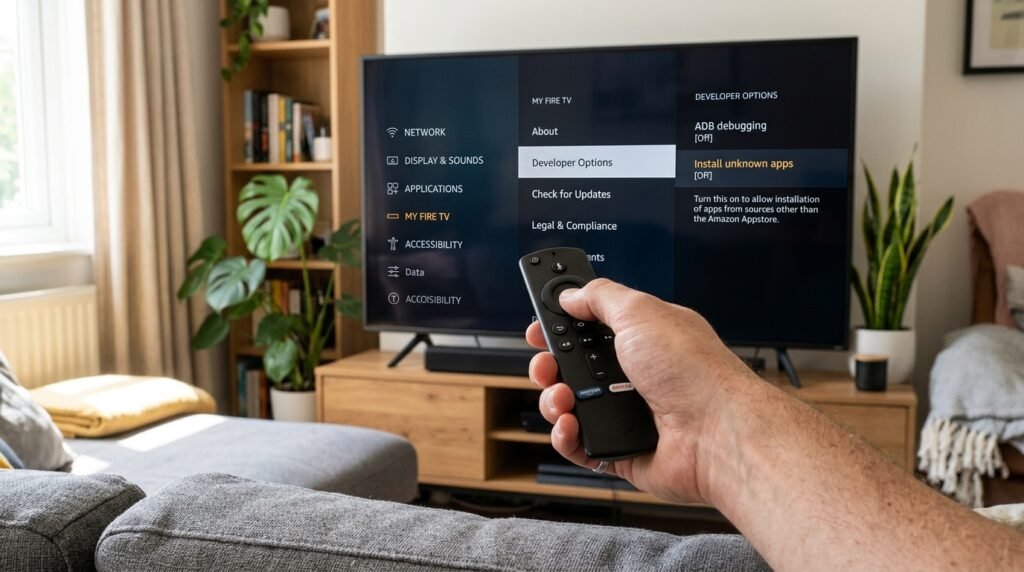
Here’s where a lot of people get a little nervous — and there’s really no need to be. This step sounds more complicated than it is. All you’re doing is telling your Firestick that it’s allowed to install apps that don’t come directly from the Amazon App Store. Think of it like unlocking a gate in your garden — you’re not breaking anything, you’re simply opening up access.
Here’s how to do it, step by step:
1. From your Firestick home screen, navigate to the cog icon in the top-right corner — that’s your Settings menu.
2. Scroll across and select My Fire TV (on older devices this may appear as Device).
3. Click on Developer Options. If you don’t see this straight away, select About first, then rapidly click the Fire TV name option seven times in a row — yes, seven — until a message appears saying “You are now a developer.” It feels absurd, but it works.
4. Inside Developer Options, find the toggle labelled Apps from Unknown Sources and switch it On. A warning box will appear — click Turn On to confirm.
That’s it. You haven’t broken your device. You haven’t voided any warranty. You’ve simply enabled your Firestick to accept apps from outside the Amazon ecosystem — which is precisely what we need for the next stage of the setup.
Step Two: Installing the Downloader App
Before you can install any IPTV application on your Firestick, you need a tool that fetches files from the internet and installs them for you. That tool is called Downloader, and it’s become the standard method for sideloading apps across the UK cord-cutting community — and for good reason. It’s free, it’s simple, and it’s actually available directly from the Amazon App Store, which makes this part refreshingly straightforward.
Here’s how to get it:
1. From your Firestick home screen, click the Search icon (the magnifying glass at the top).
2. Type “Downloader” — the app you’re looking for is made by AFTVnews. It has an orange icon.
3. Select it, click Download, and let it install. Takes about thirty seconds.
4. Once installed, open Downloader and head into its Settings. Make sure JavaScript is enabled — you’ll need this for certain download pages to work properly.
Downloader essentially acts as a mini browser and file installer rolled into one. You give it a web address, it fetches the APK file (that’s the installation package for Android-based devices, which the Firestick runs on), and installs it directly onto your device. Simple as that.
Step Three: How to Install IPTV Smarters Firestick
Install IPTV Smarters Firestick
For anyone new to IPTV, IPTV Smarters Pro is where we’d tell you to start. It’s clean, it’s intuitive, and the learning curve is about as gentle as they come. You won’t be hunting through confusing menus or deciphering settings that read like a technical manual. If you’ve ever used an on-demand app like ITVX or Channel 4, you’ll feel at home here within minutes.
IPTVStreamy is fully compatible with IPTV Smarters Pro, and entering your subscription details takes less than two minutes once the app is installed.
Follow these steps:
1. Open the Downloader app you installed in the previous step.
2. In the URL bar, type the direct download address for the IPTV Smarters Pro APK. The most reliable source is the official site: iptvsmarters.com — navigate to their downloads page and grab the Android/Fire TV version.
3. Once the download completes, Downloader will automatically prompt you to install the file. Click Install, wait for it to finish, then select Done (not Open — we’ll come back to it in a moment).
4. Delete the APK file when prompted to save storage space on your device.
5. Now find IPTV Smarters Pro in your apps list — you may need to scroll across to Your Apps & Channels and look towards the end of the list, or simply use the search function.
Connecting your IPTVStreamy account:
1. Open IPTV Smarters Pro. On the first screen, you’ll be asked how you’d like to add a playlist. Select Login with Xtream Codes API — this is the option IPTVStreamy supports and it gives you the most stable, feature-rich connection.
2. Enter a profile name — call it whatever you like, “IPTVStreamy” works fine.
3. Enter the Username, Password, and URL exactly as provided in your IPTVStreamy welcome email or account dashboard. Take care with this — a single mistyped character will stop it connecting.
4. Tap Add User. The app will authenticate your account and begin loading your channel list. Depending on your broadband speed, this may take anywhere from ten seconds to about a minute.
Once loaded, you’ll find your channels organised into categories — UK Entertainment, Sports, News, Movies, and so on. IPTVStreamy’s UK channel lineup maps neatly across these categories, so finding BBC One, Sky Sports, or TNT Sports is a matter of a few taps.
Step Four: The Professional Setup — A TiviMate UK Guide
TiviMate UK Guide
If IPTV Smarters is the sensible family hatchback of IPTV apps, TiviMate is the executive saloon. It’s the app that makes people say, “Wait — this looks better than Sky.” And genuinely, it does.
TiviMate offers a full TV-guide-style interface that feels remarkably close to the Sky Q experience British viewers are used to. You get a proper scrollable EPG (Electronic Programme Guide) with show times and descriptions, a favourites system, catch-up support where your provider enables it, and a remarkably polished finish throughout. IPTVStreamy works beautifully with TiviMate — the EPG data syncs cleanly and the channel categories come through well-organised.
There is one thing worth knowing upfront: TiviMate has a free version, but to unlock the full EPG and multi-playlist support you’ll want TiviMate Premium, which costs around £4.50 per year through the Amazon App Store. That is, frankly, an extraordinary price for what you get.
Installing TiviMate:
1. Go back to the Amazon App Store search bar and type “TiviMate”. Unlike some IPTV apps, TiviMate is listed directly on Amazon, so there’s no sideloading required this time.
2. Download and install it as you would any normal app.
3. Open TiviMate and select Add Playlist.
4. Choose Xtream Codes if you’re using IPTVStreamy’s login credentials (recommended), or select M3U URL if you’ve been given a playlist link instead. Both work perfectly well — Xtream Codes simply offers slightly better performance and gives the app access to your full VOD (video on demand) library too.
5. Enter your IPTVStreamy credentials exactly as provided, then tap Next. TiviMate will import your full channel list.
6. Follow the on-screen setup prompts — you’ll be asked to name your playlist, choose a preferred start screen, and select a few basic preferences. Take your time here; getting these right means a nicer day-to-day experience.
Once you’re through setup, you’ll land on TiviMate’s main EPG grid — and if you’ve come from Sky or Freeview, the familiarity is immediately reassuring.
Expert Tip: Setting Up Your EPG for UK Channels
The EPG is what separates a polished IPTV setup from a chaotic channel list with no context. It’s what tells your app that BBC One is showing EastEnders at 7:30pm, or that Sky Sports Main Event has the football from 5:30pm. Without it, you’re essentially flying blind.
The good news is that IPTVStreamy includes EPG data as standard — you don’t need to source a separate guide. Here’s how to make sure it’s properly synced:
In TiviMate:
Navigate to Settings → Playlists → Your IPTVStreamy Playlist → EPG URL. IPTVStreamy provides a dedicated XMLTV EPG link in your account area — paste that directly into this field. Then go to Settings → EPG and set the refresh interval to every 12 hours. This ensures your guide data stays current and UK channels always display the correct schedule.
For best results, trigger a manual EPG refresh once after entering the URL — just tap Update EPG Now — and within a minute or two, your programme guide will populate fully across all channels.
In IPTV Smarters Pro:
The process is slightly different. Head to Settings within the app, find the EPG section, and paste in your IPTVStreamy XMLTV URL. Set it to update automatically every 24 hours. Smarters handles EPG a little less elegantly than TiviMate, but for everyday viewing it does the job.
One practical note for UK viewers: make sure your time zone is set correctly on your Firestick (Settings → Device → Date & Time → Automatic Time Zone should be switched on). It sounds obvious, but an incorrect time zone will throw your entire programme schedule off by an hour — particularly relevant when the clocks change in March and October.
The UK ISP Block: What Nobody Tells You Before You Start
Everything we’ve covered so far will get you up and running beautifully — but there’s one obstacle that catches a significant number of UK users off guard, particularly on Saturday afternoons and midweek European nights.
British internet service providers — most notably Sky Broadband, Virgin Media, and BT — actively block access to certain IPTV streams during live Premier League broadcasts. This isn’t accidental. The Premier League holds some of the most expensive broadcasting rights in world sport, and rights-holders have successfully lobbied for court orders requiring UK ISPs to implement real-time blocking of streams during live matches. The blocks are dynamic, meaning they can be applied and lifted within the duration of a single match.
In practical terms, this means you might find certain channels dropping out or refusing to load precisely when you most want them — the 3pm Saturday kick-offs, the Champions League nights, the Sunday lunchtime fixtures.
The solution is a VPN — a Virtual Private Network. A VPN routes your internet traffic through a server in another location, masking your activity from your ISP and bypassing any blocks they’ve put in place. For IPTV on Firestick, it’s less of an optional extra and more of a sensible precaution if sport is part of your viewing diet.
The two VPNs most consistently recommended within UK cord-cutting circles are NordVPN and Surfshark. Both have dedicated Fire TV apps available directly from the Amazon App Store, both offer fast enough server speeds to handle 4K streaming without meaningful quality loss, and both are available at reasonable annual subscription rates — Surfshark in particular is frequently available for under £2.50 per month on longer plans.
Quick VPN setup on Firestick: Download your chosen VPN from the App Store, log in, connect to a UK server (this keeps your streaming experience local and your speeds high), and then launch your IPTV app as normal. The whole process adds about thirty seconds to your startup routine.
Troubleshooting: Solving the Most Common Setup Problems
Even a clean setup occasionally throws up a snag. Here are the issues UK users report most frequently — and how to resolve them quickly.
“App Not Installed” or “App Not Found” error This almost always means one of two things: either Apps from Unknown Sources wasn’t enabled properly before you attempted installation (go back and double-check that toggle in Developer Options), or the APK file you downloaded was corrupted mid-download. Delete the file via Downloader, re-download it, and try the installation again.
Black screen when opening a channel A black screen with audio playing usually indicates a video codec issue. Go into your IPTV app’s player settings and switch between the available player options — most apps offer an internal player plus MX Player or ExoPlayer as alternatives. Try each one. For TiviMate users, go to Settings → Player and toggle through the options until the picture appears. If you have MX Player installed, select that as your default — it handles a wider range of stream formats reliably.
Buffering during live TV Buffering is the issue people find most frustrating, and it’s nearly always down to one of three causes. First, check your broadband speed using the Fast.com app on your Firestick — if you’re consistently below 25 Mbps, speak to your ISP. Second, if you’re on Wi-Fi, consider the ethernet adapter mentioned earlier in this guide. Third, try reducing your stream quality within the app settings from 4K or FHD down to HD temporarily — if the buffering stops, your connection is the bottleneck rather than the app or provider.
Channels not loading after EPG update Close the app fully, clear its cache (Settings → Applications → Manage Installed Applications → your IPTV app → Clear Cache), and relaunch. This resolves the vast majority of post-update glitches.
Frequently Asked Questions
Is IPTV legal in the UK? The technology itself — streaming television over an internet connection — is entirely legal. The legality question centres on what you’re streaming and whether the provider holds the correct licences to distribute that content. Using a licensed, legitimate IPTV service is perfectly lawful. We’d always encourage users to satisfy themselves that any provider they subscribe to operates within applicable copyright frameworks.
Do I still need a TV Licence for IPTV on Firestick? Yes — if you watch any live television as it’s being broadcast, or if you watch or download BBC programmes on iPlayer, you are legally required to hold a valid UK TV Licence regardless of how you’re receiving the signal. IPTV does not change this obligation.
Will IPTV work on my older Firestick? Older Firestick models (2nd and 3rd generation standard sticks) will run IPTV apps, but you may experience occasional buffering or slower app performance, particularly with heavier applications like TiviMate. If your device is more than three years old, upgrading to the 4K Max is worth the investment.
How much broadband speed do I actually need? For a single HD stream, 25 Mbps is sufficient. For 4K, aim for 50 Mbps minimum. If multiple people in your household are streaming simultaneously, 100 Mbps fibre gives you comfortable headroom.
Can I use IPTV on more than one device? This depends on your subscription plan. Most providers, including IPTVStreamy, offer multi-connection plans that allow simultaneous streaming on two or more devices — useful for larger households where viewing habits differ.
What happens if my IPTV provider has downtime? Occasional brief outages are a reality with any streaming service — including Netflix and Disney+. Reputable providers schedule maintenance during low-traffic hours and communicate downtime in advance. IPTVStreamy maintains a status page and notifies subscribers proactively, which puts it ahead of many competitors on this front.
Do I need any technical knowledge to setup IPTV Firestick? Genuinely, no. If you’ve followed this guide from the beginning, you’ve already completed the most technical elements. The average setup — from unboxing to watching your first channel — takes most people under an hour, including those who’d describe themselves as not particularly tech-savvy.
Will a VPN slow down my streaming? A well-chosen VPN on a fast broadband connection will have negligible impact on your streaming quality. NordVPN and Surfshark both maintain high-speed UK servers specifically for this reason. You may notice a marginal reduction in speed, but nothing that should affect HD or 4K playback in normal conditions.
Final Verdict: The Best IPTV Choice for UK Residents in 2026
Before diving into the technical steps, make sure you’ve checked our expert analysis on the Best IPTV UK providers to ensure you’re starting with a quality service. There’s no shortage of IPTV providers operating in the UK market, and the quality varies enormously. Some offer rock-bottom prices with correspondingly unreliable streams. Others overcharge for services that underdeliver. After everything we’ve covered in this guide, one provider stands clearly above the rest for British households.
IPTVStreamy is our definitive recommendation for UK viewers in 2026.
The reasons are straightforward. The channel lineup is built around what British audiences actually watch — all the major UK broadcasters, regional variations included, a comprehensive sports package that covers Premier League, Champions League, golf, cricket, and boxing, and an on-demand library that rivals mainstream subscription services. The EPG integration is clean and reliable, it works seamlessly with both IPTV Smarters Pro and TiviMate, and the technical infrastructure is robust enough to handle peak-time traffic without the buffering issues that plague cheaper alternatives.
Customer support is responsive and UK-focused — a detail that matters more than it sounds when something stops working at 7:45pm on a Champions League evening. Plans are flexible, pricing is transparent, and there’s no long-term contract tying you in. Given that the average Sky TV package now costs upwards of £800 per year, the saving on offer here is not trivial.
For anyone seriously considering making the switch from Sky or BT — and in 2026, that’s an increasing number of British households — IPTVStreamy paired with a Firestick 4K Max is the setup we’d confidently point friends and family towards.
Ready to Make the Switch?
If you’ve read this far, you have everything you need to get IPTV on Firestick running confidently in your home. The technology is mature, the setup process is manageable for anyone regardless of technical background, and the financial case speaks entirely for itself.
Start your IPTVStreamy free trial today →
No long-term commitment. No satellite dish. No £70-a-month direct debit. Just reliable, high-quality television — on your terms.